
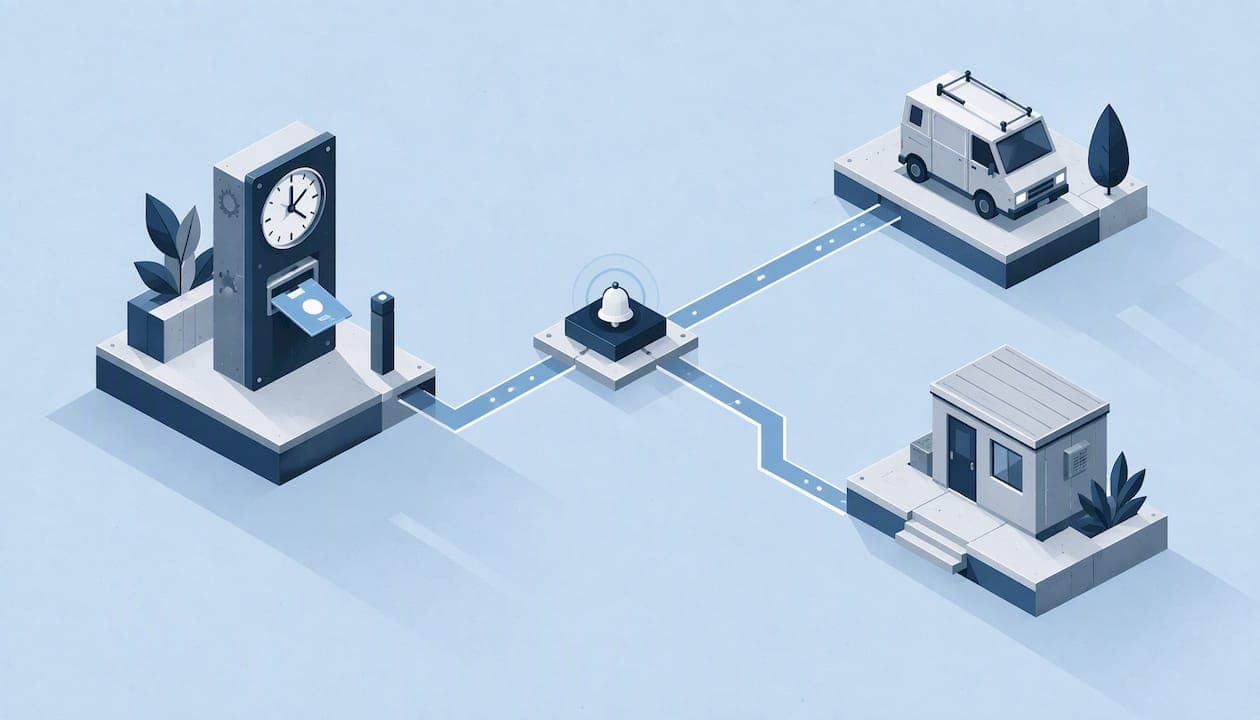
To set up attendance alerts for a field team, pick the few events that actually need a manager's attention (a missed clock-in, a late arrival, a punch outside the job site, an approaching overtime limit), send each one to a single named person, and test the rules on a small crew before you roll them out. Start with fewer alerts than you think you need. A manager who gets five useful messages a day acts on them. A manager who gets fifty mutes the channel.
This guide walks through that setup step by step, with example thresholds, a routing table, a testing routine and the privacy checks to finish before you switch anything on.
TL;DR
- Alert on exceptions only: missed punches, late starts, no-shows, punches outside a job site, and overtime approaching a limit.
- Give every alert one owner and one deadline for response, so nobody assumes someone else saw it.
- Use a grace period before a late alert fires, then review the rules after two weeks of real data.
- Alerts rest on trustworthy punches. Verified location and identity checks matter more than the alert itself.
- Tell employees what is monitored, collect location at punch time rather than all day, and keep the data only as long as you need it.
Table of Contents
- Alert or notification: what is the difference?
- Step 1: Decide which events deserve an alert
- Step 2: Set thresholds that match how your crews work
- Step 3: Decide who receives each alert
- Step 4: Make sure the punches behind the alerts are trustworthy
- Step 5: Check privacy and labor-law requirements first
- Step 6: Test before you launch
- Step 7: Review and adjust on a schedule
- Our perspective: fix the punch first, then alert on it
- Where Clock-Me fits
- A one-page setup checklist
- FAQ
- Sources
Alert or notification: what is the difference?
People use the two words interchangeably, but they do different jobs in a time tracking setup.
- A notification is information. "Your timesheet was approved." "Shift schedule updated." Nobody has to do anything.
- An alert is an exception that needs a decision. "Dana has not clocked in, and her shift started 20 minutes ago." Someone should act.
The practical rule: if the message does not require a response, it is a notification, and it should not share a channel with your alerts. Mixing them is the fastest way to train managers to ignore everything. When you build your setup, keep a short list of true alerts and send routine updates somewhere quieter, such as a daily summary.
Step 1: Decide which events deserve an alert
Field teams generate a lot of events. Most of them are normal. Your alerts should catch the ones that cost you money, create compliance risk or leave a customer waiting.
Start with these five:
- Missed clock-in. The shift has started and no punch exists.
- Late arrival. A punch exists but it came after the grace period.
- Missed clock-out or open shift. A shift runs far past its scheduled end.
- Punch outside the job site. The location at punch time does not match the assigned site.
- Overtime approaching. An employee is close to the weekly limit you set. We cover the rules for this in our guide to field team overtime alerts.
Once those run cleanly, consider adding alerts for suspicious punches, such as a clock-in from an unfamiliar device or a failed identity check. These are the signals that point to buddy punching, where one person clocks in for another. Our explanation of device ID time tracking shows how to verify a punch without collecting hardware identifiers you do not need.
What to leave out
Skip alerts for things you will not act on. If a five-minute delay never leads to a conversation, do not alert on five-minute delays. If you cannot name who responds to an alert, delete it. Every alert needs a clear answer to the question, "What will someone do when this fires?"
Step 2: Set thresholds that match how your crews work
A threshold is the point where an event becomes an alert. Set it too tight and you flood managers with noise. Set it too loose and the alert arrives after the damage is done.
The numbers below are starting points, not rules. Adjust them to your travel times, job types and how strict your scheduling is.
| Alert | Suggested starting threshold | Why this number |
|---|---|---|
| Late arrival | 10 minutes after scheduled start | Absorbs parking, gate checks and short traffic delays |
| Missed clock-in | 20 to 30 minutes after scheduled start | Gives time for a late alert to resolve first, so you are not double-alerting |
| Open shift | 1 to 2 hours after scheduled end | Catches forgotten clock-outs before they inflate a timecard |
| Outside job site | At the moment of punch | A wrong-location punch is easiest to verify right away |
| Overtime approaching | A few hours before your weekly limit | Leaves time to reassign work |
Two habits make thresholds work better.
Escalate in stages. A late alert goes to the crew lead at 10 minutes. If there is still no punch at 30 minutes, a missed clock-in alert goes to the manager. Staged alerts mean most problems are solved by the person closest to the crew.
Vary by job type. A crew starting at a single warehouse can have a tight grace period. A crew driving between several locations needs more room. If your people move between sites during the day, read how multiple job site tracking affects timekeeping before you set site-based alerts.
Step 3: Decide who receives each alert
The most common setup mistake is sending every alert to every manager. Everyone assumes someone else is handling it, and nothing happens.
Use this routing pattern:
| Alert | First recipient | Escalates to |
|---|---|---|
| Late arrival | Crew lead or site supervisor | Operations manager after 20 more minutes |
| Missed clock-in | Site supervisor | Operations manager |
| Open shift | Crew lead | Payroll contact at end of day |
| Outside job site | Site supervisor | HR lead if it repeats |
| Suspicious punch | Operations manager | HR lead |
| Overtime approaching | Operations manager | Owner or finance approver |
Name a backup for every role. Supervisors take days off, and an alert sent to someone on vacation is the same as no alert.
Pick the right channel
A channel is how the message reaches the person: push notification, email, text or a dashboard. Choose by urgency.
- Urgent and time-bound (missed clock-in, suspicious punch): push or text, so the supervisor sees it within minutes.
- Needs review but not right now (open shifts, repeat lateness): email or a daily digest.
- Overview (who is on site, who is missing): a live dashboard that managers check on their own schedule. See how a real-time attendance dashboard helps you spot field no-shows without watching it all day.
Do not assume every channel is guaranteed to deliver. Documentation for one industrial mobile platform, for example, notes that its mobile notifications include error handling and retries, while email and SMS are best-effort and not guaranteed. The lesson applies to any setup: for the alerts that matter most, use two routes, such as a push message plus a dashboard flag, and check that unacknowledged alerts get noticed.
Step 4: Make sure the punches behind the alerts are trustworthy
An alert is only as good as the data that triggers it. If employees can clock in from the parking lot of a different site, or a friend can punch for them, your "on time" alerts will stay quiet while the real problems go unseen.
Before tuning alerts, confirm your clock-in process does three things:
- Verifies location at the moment of the punch. This is what makes "outside job site" alerts possible. Our guide to GPS verified clock-in explains how this supports compliance.
- Verifies identity. Without it, you cannot tell whether the right person punched.
- Defines the work site. A geofence is a boundary drawn around a job site. Punches inside are valid, punches outside are flagged. Read more in our piece on event-based geofencing.
If you are unsure how location checks work without constant tracking, see field employee location verification. The short version: you check where someone is when they punch, not where they are all day.
Step 5: Check privacy and labor-law requirements first
Attendance alerts often use location, and location data is sensitive. Settle the policy before you configure anything.
Tell employees what is collected and why. Write a clear policy that covers when location is captured, who sees it and how long it is kept. If you do not have one, our GPS tracking policy template is designed to be finished in one work session.
Collect at events, not continuously. Courts have looked hard at scope. In a New York case, Matter of Cunningham v New York State Dept. of Labor, the majority found a month of GPS use reasonable under the circumstances, while the dissent objected that data was collected around the clock, including on a vacation and considered that unreasonable. The takeaway for your setup is to limit collection to what the business purpose needs, and to keep it to working time. Our article on employee GPS privacy explains why punch-time events carry less legal risk than continuous streams.
Protect and delete. Law firm guidance for employers says collected attendance and geolocation data should be protected with strong security measures and deleted or anonymized once it is no longer needed for its business purpose. Set a retention period and stick to it.
Check your state. Rules on location data, notice, meal and rest breaks and overtime differ by state. If you employ people in California, review the state's requirements with your employment counsel or HR advisor before you automate alerts that touch breaks or hours. An alert that flags a missed meal period can help you stay compliant, but only if the rule behind it is the right one.
Do not use alerts as discipline on autopilot. An alert starts a conversation. A person should look at the context before anyone is written up.

Step 6: Test before you launch
Run a pilot with one crew for one to two weeks. During the pilot:
- Create test scenarios. Have a volunteer clock in late, skip a clock-in, clock in from outside the site, and leave a shift open. Confirm each one produces the alert you expect, to the right person, through the right channel.
- Time the response. Note how long it takes from the event to the alert, and from the alert to someone acting.
- Collect feedback from recipients. Ask supervisors which alerts were useful and which were noise.
- Check for false positives. Common causes include weak GPS signal inside buildings, tight geofences and grace periods that ignore travel time.
Only expand to other crews after the pilot alerts are quiet when they should be and loud when they should not be ignored.
Step 7: Review and adjust on a schedule
Alerts drift. Crews change, sites open and close, and the grace period that worked in spring fails in winter.
A simple review routine:
- Weekly for the first month. Count alerts by type. If one type makes up most of the volume, check whether the threshold is wrong or the problem is real.
- Monthly after that. Look at how many alerts led to an action. Alerts that never lead to action are candidates for removal.
- Every time a site or schedule changes. Update geofences, recipients and shift times.
- Every quarter. Confirm retention settings, access permissions and the written policy still match what you do.
Track two numbers: the share of alerts that someone acted on, and the average time to respond. If the first falls, you have noise. If the second rises, you have an ownership problem.
Our perspective: fix the punch first, then alert on it
We build Clock-Me for teams that work away from a desk, and we see the same pattern often. Managers ask for more alerts when what they actually need is more reliable punches. If a clock-in can be faked or placed in the wrong location, even a perfect alert rule will report the wrong thing.
That is why we put verification first: GPS-verified clock-ins, identity checks, geofencing and device-based fraud detection. Alerts and live dashboards then work from data you can trust. We also prefer events over streams. A punch, a random location check-in or a geofence crossing tells a manager what they need to know without following an employee through the day. That approach keeps the setup simpler for supervisors and easier to defend to employees.
Our advice to any manager starting out: choose five alerts, name an owner for each, run them for two weeks, and cut anything nobody acts on.
— Clock-me
Where Clock-Me fits
If you want verified punches, geofencing and live attendance dashboards in one place, Clock-Me is built for that. There is a Free plan at $0 per month for small teams. Paid plans on our solutions page are Starter at $31.99 per month, Growth at $54.99, Business at $99.99, Pro at $224.99 and Corporate at $439.99, as published. Enterprise pricing is not published. You can also see how the GPS punch clock features work before you commit.
A one-page setup checklist
- Write down the five alert events you will start with.
- Set a grace period for late arrivals and a later threshold for missed punches.
- Assign one owner and one backup per alert.
- Choose a channel by urgency, and add a second route for critical alerts.
- Confirm punches verify location and identity.
- Publish a plain-language policy on what location data you collect and how long you keep it.
- Pilot with one crew for one to two weeks.
- Schedule weekly, then monthly reviews.
FAQ
How many attendance alerts should I set up at first?
Start with four to five: missed clock-in, late arrival, open shift, punch outside the job site and approaching overtime. That covers most of the cost and compliance risk without overwhelming supervisors. Add more only when you can name who will act on each one.
How long should the grace period be before a late alert fires?
A common starting point is about 10 minutes, then adjust to your travel patterns and site access. Crews who drive between locations or pass through security gates need more room than a team starting at one door. Review the alert counts after two weeks and change the number if one type dominates.
Can attendance alerts use GPS without breaking privacy rules?
They can if you limit collection to what the business needs, tell employees in writing and protect the data. Capturing location at punch time is easier to justify than tracking someone all day, as courts have weighed scope closely. Rules vary by state, so have your employment counsel or HR advisor review your policy before launch.
What should I do when an alert looks like buddy punching?
Check the context before you act: the device used, the location at punch time and whether identity verification passed. Talk to the employee and the supervisor, and record what you find. Treat the alert as a prompt to investigate, not as proof.
Sources
- Welcome to CFSWorX (ICONICS documentation)
- Matter of Cunningham v New York State Dept. of Labor (2011)
- 7 Best Privacy Practices for Employers (Fisher Phillips)