
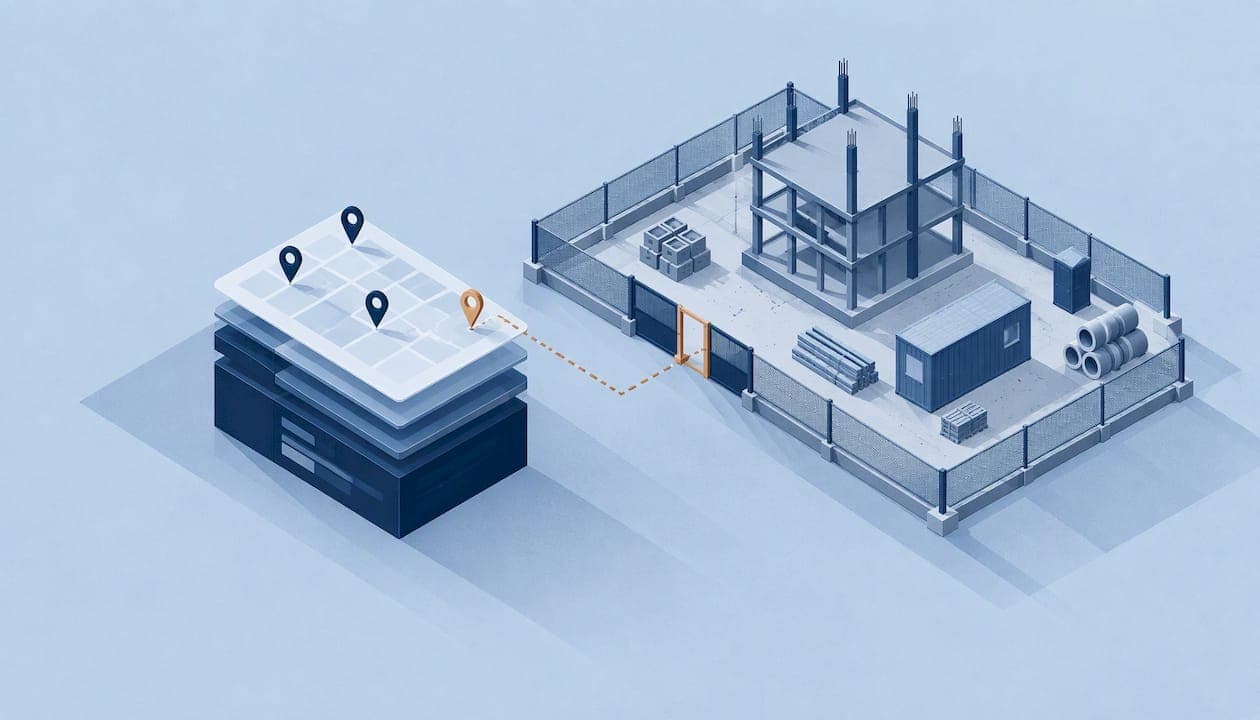
A real-time attendance dashboard gives managers an instant, verified view of who is clocked in, who is late or absent, and whether shifts are adequately staffed. It is built for managers and HR teams running field or multi-site crews. When you compare options, judge three things first: how fast data syncs, how well clock-ins are verified, and how cleanly exports reach payroll.
TL;DR:
- During demos, test a live punch and check whether it appears instantly; verify GPS or geofence results, identity checks, alerts, and payroll exports.
- At each shift start, compare site headcounts with schedules, contact late or absent workers, and arrange replacements before gaps affect the work.
- Explain what data you collect and why, record location only when workers punch, and limit access by role with clear retention limits.
- Treat biometric clock ins as high risk: consider PINs, complete a data protection impact assessment, and require human review before pay or discipline decisions.
- Before expanding, pilot two or three representative sites through a full payroll cycle, adjust geofences, and confirm export fields with a real payroll dry run.
Table of Contents
- What does a real-time attendance dashboard show you?
- Which features should you evaluate before you buy?
- How do live dashboards help with staffing and replacements?
- What privacy and compliance checks come first?
- How do you roll out a live attendance dashboard?
- What do pricing tiers usually change?
- What support and training should you expect?
- How long does implementation take from setup to full use?
- A publisher's view on field-team dashboards
- How Clock-Me gives you a live board and payroll-ready exports
- FAQ
- Sources
What does a real-time attendance dashboard show you?
Think of the dashboard as a live board for your whole workforce. Each employee appears with a clear status: In, Out, Break, Late, or No-show. Totals roll up by location, so you can see at a glance how many people are on shift at each site.
Drill into any person and you will find the details that settle most daily questions: their active shift, the time of their first punch, and their last-seen timestamp. Quick filters for team, site, or date let you cut a busy board down to the one crew you care about right now.
The board also tells you how each punch arrived. Mobile, kiosk, and web entries are labeled, and GPS or geofence results appear next to the punch, so you can see whether someone clocked in inside the job-site boundary or outside it. A punch outside the fence is flagged for review instead of passing silently.
Payroll prep sits close to the live view. Pending approvals show up as a count you can click through, and a CSV export button lets you pull the period's hours without leaving the board. If you only look at a static end-of-day report, you find problems after payroll has already been affected. A live board lets you fix them while the shift is still running.
Which features should you evaluate before you buy?
Use the checklist below during vendor demos or when you write an RFP. Buyers comparing tools in this category, as Capterra's attendance software category shows, consistently look for payroll integration, ease of use, and mobile-friendly options with GPS or geofencing for field-based staff.
- Real-time sync: Ask whether punches appear instantly or in batches. Batched updates can leave the board behind reality.
- Location verification: Look for GPS capture, configurable geofence radius, and site filters.
- Identity verification: Check for photo check-in, PINs, kiosk modes, and device binding to stop buddy punching.
- Alerts: Confirm no-show, late-arrival, and overtime alerts, with thresholds you can set yourself.
- Reporting: Expect absence summaries, trend views, and exports you can hand to an auditor.
- Integrations: Payroll, HRIS, scheduling tools, and single sign-on should connect without custom work.
- Usability: Prefer a mobile-first experience, kiosk hardware compatibility, and role-based access so supervisors only see their own crews.
Capture methods vary by industry. Some teams use QR check-ins at events or class sessions, and a QR-powered attendance guide shows how that approach works when workers do not carry company devices. Kiosk-based check-in suits sites with a fixed entrance, and our comparison of kiosk versus mobile time clocks walks through the trade-offs.
Pro Tip: Ask every vendor to run a live punch during the demo and show you how many seconds pass before it appears on the board.
How do live dashboards help with staffing and replacements?
The value of a live board is the decision you can make while the shift is still happening. Headcount by site tells you where you are short. Status flags tell you why: a late arrival, a missed punch, or a true no-show.
Here is a workflow that works for most field and multi-site teams:
- Check the board at shift start and compare headcount per site against the schedule.
- Review the late and no-show flags, then message the person directly from the dashboard.
- If there is no response within your set window, post the open shift or contact your replacement list.
- Approve or correct any edited punches so the record stays clean for payroll.
- Escalate any shift that is still unfilled to a regional lead before the work is affected.
Alerts do much of the watching for you. A no-show alert tied to scheduling can post an open shift or suggest a replacement the moment someone misses their start, rather than waiting for a supervisor to notice. The same goes for overtime alerts, which warn you before a crew crosses a threshold.
Track a few numbers each shift: coverage percentage, late arrivals per shift, and pending approvals. When coverage dips at the same site every Monday, you have a scheduling problem, not an attendance problem. Our guide to resolving attendance exceptions in four steps covers how to handle the corrections these alerts produce.
What privacy and compliance checks come first?
Live monitoring collects personal data, so decide what you need before you switch it on. The UK Information Commissioner's Office says monitoring must be lawful and fair and that workers should be told what is collected and why, as Ogletree's summary of the ICO guidance explains. These are UK regulatory points, not universal law, so apply the rules of every jurisdiction where your staff work.
Use this short list as a starting point:
- Collect only what you need. Write down the purpose of each data point, whether it is a punch time, a location, or a photo.
- Treat biometrics carefully. The ICO states that biometric data used for time and attendance is high risk. Consider alternatives such as PINs or photo check-in, and complete a data protection impact assessment (DPIA) before deployment.
- Keep a human in the loop. Do not let automated flags become discipline or pay decisions on their own. Workers need to understand the logic and be able to challenge outcomes.
- Limit access and retention. Set role-based permissions, retention limits, and audit trails so payroll and HR reviews can be traced.
The ICO notes that monitoring tools include cameras, webcams, keystroke monitoring, body-worn devices, and location tracking, and that DPIAs are an important accountability tool for finding and reducing monitoring risks. Involve workers in that assessment, not only legal and IT.
Location data deserves particular care. Recording punch events at the moment of clock-in is far less intrusive than streaming a person's position all day, and our post on employee GPS privacy and event-based tracking explains how to keep legal risk down. If you employ people in California, our guide to audit-ready timekeeping for California employers is a useful companion.
How do you roll out a live attendance dashboard?
A short, well-measured pilot can be a better starting point than a company-wide launch. Follow these steps:
- Pick a pilot. Choose two or three representative sites and set measurable goals, such as punch accuracy and a clean payroll dry run.
- Choose devices and settings. Decide between kiosk and mobile capture, set the geofence radius for each site, and pick identity-verification settings that match your risk level.
- Tell your workers. Publish a plain-language monitoring policy, complete any required privacy assessment, and collect feedback before go-live.
- Test payroll. Map export fields to your payroll system and run a dry run on a real pay period. Our guide to mapping time tracking fields and running a payroll dry run shows how.
- Write your SOPs. Define who handles exceptions, who approves edits, and how fast someone must respond to an alert.
- Review and scale. After the pilot, compare results against your goals, adjust settings, and add sites in waves.
Geofence radius is the setting most teams get wrong on the first try. Too tight and honest workers are flagged in a parking lot. Too loose and the check means nothing. Our write-up on GPS time tracking benefits and limits helps you set realistic expectations.
Pro Tip: Run the pilot through one full payroll cycle before expanding, so you see the real exception volume instead of a guess.
What do pricing tiers usually change?
Attendance software is typically sold in tiers, and the tier you pick decides how much of the live board you get. Entry plans usually cover basic clock-in and a simple view of who is working. Higher tiers add the features field teams rely on: geofencing, identity verification, alerts, approvals, and payroll exports. The top tiers add support for large headcounts and custom arrangements.
Our plans are priced per month: Free at $0, Starter at $31.99, Growth at $54.99, Business at $99.99, Pro at $224.99, and Corporate at $439.99. Current Enterprise pricing is on our solutions page. You can compare every tier on our solutions page.
When you compare any vendor, do not look only at the sticker price. Ask which tier unlocks live alerts, which one includes payroll export, and how the price changes as your active employee count grows. A plan that looks cheap can become the expensive one if the feature you need sits two tiers up.
A free plan is a sensible way to test fit. Small teams can assess whether the tool answers their daily staffing questions, and only then decide whether paid features justify the upgrade.
What support and training should you expect?
A dashboard only helps if your supervisors actually use it, so look hard at what the vendor provides after the sale. Good support helps with getting started, learning the board, and fixing problems quickly.
For getting started, ask for a quick-start guide that walks a manager through adding employees, setting up a site, and sending the first punch. For learning, look for short training modules and a searchable help center, ideally in the languages your crews speak. Bilingual content matters a great deal for field teams, where many supervisors and workers prefer instructions in Spanish or English.
For problems, find out how you reach a person. Ask about response times, whether support is included in your tier, and whether the vendor will join your pilot review. A vendor who stays involved during the first payroll cycle will save you more time than one with a long feature list and an empty inbox.
Finally, make training part of your own plan. Give supervisors a one-page cheat sheet that covers the three things they will do most: reading status flags, approving edits, and responding to alerts. Short, role-specific training can be easier to absorb than a long session covering every setting.
How long does implementation take from setup to full use?
Timelines depend on how many sites you run and how clean your employee data is, but most rollouts follow the same shape. Treat the following as a planning pattern, not a promise, and adjust it to your own headcount.

The first stage is setup. You add employees, create sites and geofences, choose identity-verification settings, and assign supervisor roles. With tidy data this can move quickly, because the work is mostly configuration rather than development.
The second stage is the pilot. A few sites run real punches while you check accuracy and complete a payroll dry run. Expect to spend the most time here, since this is where you discover which geofences need adjusting and which workflows need a clearer owner.
The third stage is staged rollout. You add sites in waves rather than all at once, so your support load stays manageable and each group gets proper attention during the rollout.
The final stage is steady state. Supervisors check the board as part of their routine, exceptions follow your written process, and payroll closes from the exported hours instead of from chasing paper timesheets. At that point, review your alert thresholds and retention settings so they still match how your teams really work.
A publisher's view on field-team dashboards
We focus on helping managers make staffing decisions while a shift is still running. Managers stop reconstructing the day afterward and start steering it.
The trade-off is real, though. Every verification feature you add makes the system stronger and also more noticeable to workers. We believe the right balance is the least intrusive check that still gives you a record you can trust: event-based location, clear policies, and human review of anything the system flags. Monitoring that workers understand and accept lasts longer than monitoring they resent.
If you want deeper how-to help, our posts on exception management and payroll integration go step by step.
— Clock-me
How Clock-Me gives you a live board and payroll-ready exports
If your crews work in the field, we built Clock-Me for exactly this job. You get a live view of your team, verified punches, and hours that are ready for payroll without paper timesheets.
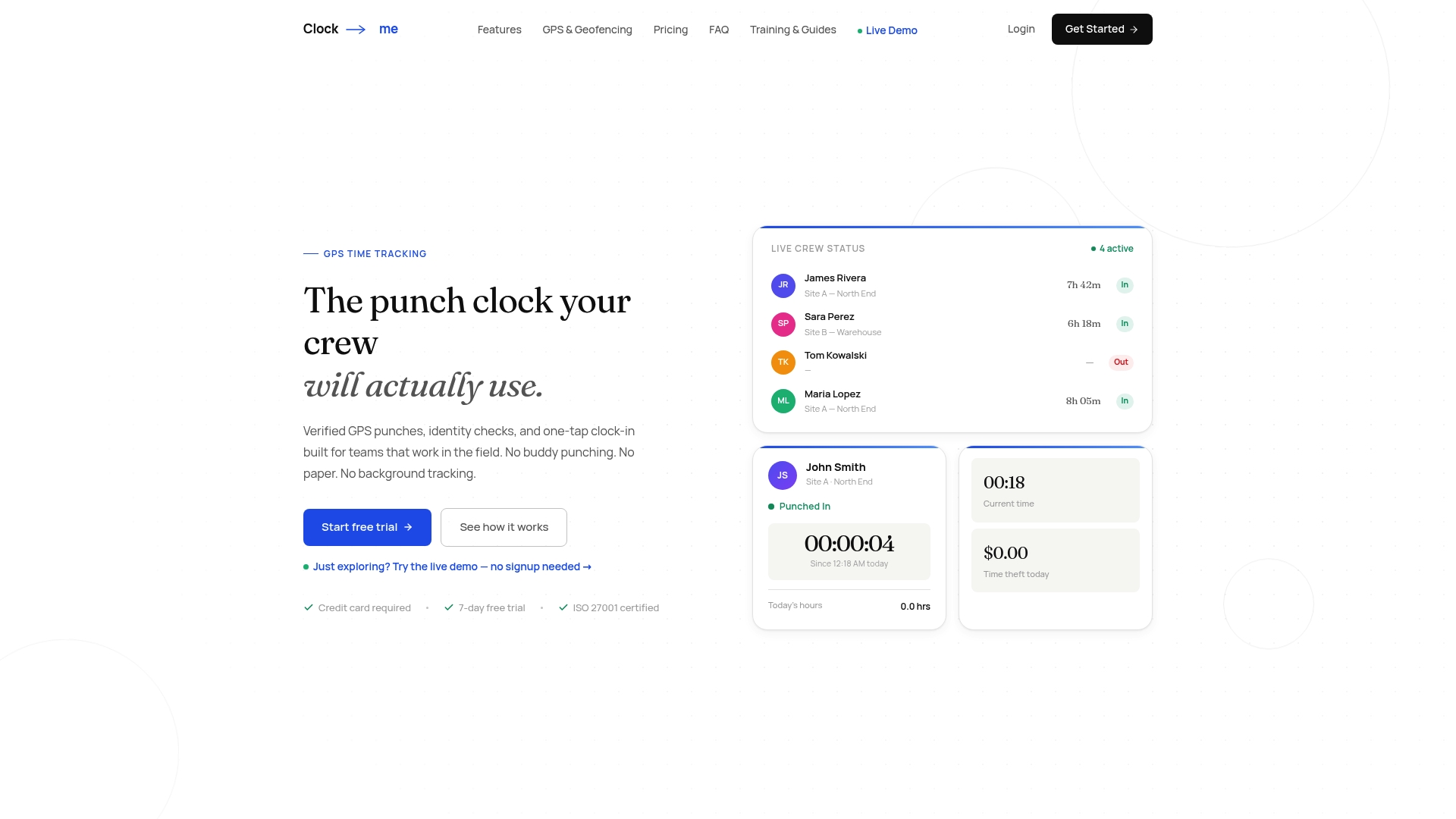
Here is what you can use today:
- A live dashboard showing who is clocked in across your sites
- GPS-verified clock-ins with a simple one-tap punch
- Identity verification to block buddy punching
- Geofencing so punches count only at the right locations
- Timesheet approval and payroll export
We also offer features aimed at California employers, which we describe as our stated approach to supporting compliance with local labor rules. To see the live board with your own team, start on our free plan or compare tiers on our solutions page. You can also read about our GPS punch clock and geofencing before you decide.
FAQ
What is real-time attendance?
Real-time attendance means punches appear on your dashboard the moment an employee clocks in or out. You see current status, such as In, Out, Break, or Late, instead of waiting for a daily report. That lets you act on gaps while a shift is still in progress.
What is the best way to track attendance?
For field and multi-site teams, a useful approach combines mobile or kiosk capture with GPS or geofence validation and a live dashboard. Capterra's category overview notes that buyers look for payroll integration and mobile-friendly options for field staff. Add identity verification so each punch belongs to the right person.
What is the best free attendance tracking tool?
The best free option is the one that gives your team a live status view and verified punches without limiting the features you need to test. We offer a free plan. Check our solutions page for current details. Check any free plan for limits on employees and exports before relying on it.
What is the best app for checking attendance?
Look for an app with fast sync, GPS or geofence checks, and role-based access so supervisors see only their own crews. Test it with a live punch and confirm how quickly it reaches the board. Make sure it also exports cleanly to your payroll system.
Do biometric clock-ins need extra privacy review?
Yes. The ICO says that biometric attendance is high risk, and it suggests considering alternatives and carrying out a DPIA. Rules differ by jurisdiction, so check the law where your workers are based.
Sources
- Ogletree
- Best Attendance Tracking Software 2026 | Capterra
- Specific data protection considerations for different ways or methods of monitoring workers | ICO