
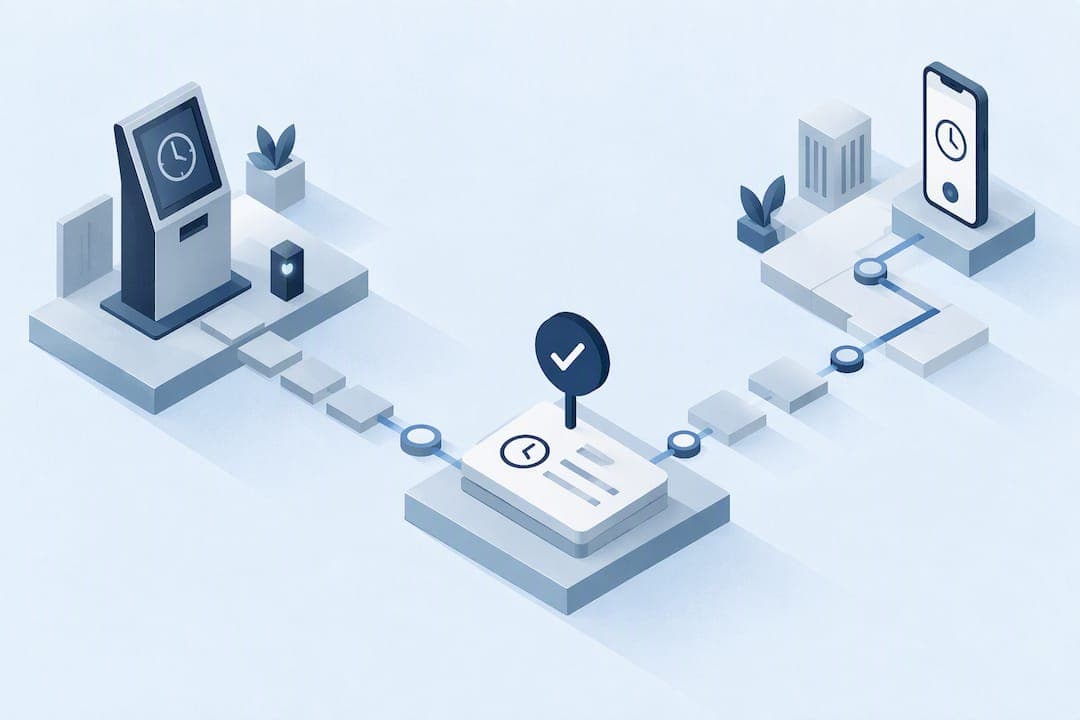
Fixed-site hourly teams usually do best with a shared kiosk. Field crews and distributed staff usually do better with a mobile app and GPS verification. Hybrid teams, with some people on-site and others moving between locations, often need a platform that supports both methods and reconciles the records automatically. Privacy rules and payroll integration can shift the final call either way.
TL;DR:
- Kiosks work best in fixed-site environments but require upfront hardware investment and face potential single points of failure.
- Mobile clocks offer flexibility for field workers and use GPS to verify location, but need policies for device use and may encounter spoofing risks.
- Hybrid teams benefit from platforms that automatically reconcile records from both kiosk and mobile methods to simplify payroll processing.
- Biometric verification adds privacy concerns and should only be adopted if justified by workplace risk or complexity, with safeguards documented.
- Choosing the right system depends on the workforce pattern, device policies, privacy considerations, and integration needs, with pilots recommended before full deployment.
Table of Contents
- Kiosk vs mobile: a quick side-by-side comparison
- Pros and cons of kiosk deployments
- Pros and cons of mobile time clocks
- Which workforce patterns and industries suit each method
- Privacy and biometric considerations to document
- Setup and cost factors to compare
- Payroll, HR, and IT integration checklist
- Decision checklist: how to choose and run a pilot
- Maintenance and troubleshooting common issues
- Clock-Me's take on hybrid deployments
- Clock-Me: a practical option for field and hybrid teams
- Sources
- FAQ
Kiosk vs mobile: a quick side-by-side comparison
The two methods differ in hardware, authentication, and how they behave when the internet drops.
A shared kiosk is a dedicated tablet or terminal mounted near the entrance, break room, or job trailer. Employees clock in with a PIN, a photo, or a badge scan, and the device stays in one place. A mobile time clock runs as an app on the employee's own phone and logs the punch along with the device's location, so there is no terminal to install or maintain at every site.
- Kiosks rely on fixed hardware; mobile systems rely on employee-owned devices.
- Kiosks typically use PIN, photo, or badge checks; mobile systems typically add GPS and identity verification.
- Kiosks usually hold the authoritative timestamp locally until synced; mobile apps often queue punches offline and sync once connected.
- Kiosks suit retail, warehouses, and clinics; mobile suits construction, home care, delivery, and other field-based industries.
Shared time clocks fit fixed-site hourly work, while mobile punch fits people who move between locations and would otherwise need a terminal at every stop.
Pros and cons of kiosk deployments
A kiosk gives employees one predictable spot to clock in and removes any dependence on personal phones.
- Predictable punch point: everyone uses the same device, which cuts confusion for new hires.
- No BYOD dependency: staff without smartphones or data plans aren't excluded.
- Hardware cost: tablets, mounts, protective cases, and kiosk-mode licensing add upfront expense.
- Single point of failure: a broken or offline kiosk can stall an entire shift's punches.
- Queuing and hygiene: shared touchscreens create lines at shift change and raise cleaning concerns in some workplaces.
Mounting height, power access, and a charging or network plan for the device all need to be settled before installation day.
Pros and cons of mobile time clocks
Mobile punch clocks trade a fixed terminal for flexibility and GPS-backed accuracy.
- Flexibility: employees clock in from wherever the job actually is, with no terminal to visit first.
- Lower hardware footprint: no tablets or mounts to buy, since the app runs on existing phones.
- GPS verification: location data confirms a punch happened near the job site, which helps catch early or late departures.
- BYOD friction: policies on personal device use, battery drain, and app permissions need to be settled in advance.
- Spoofing and connectivity risk: location mocking and dead zones can create edge cases that need review.
- Controls worth adding: geofencing, randomized location checks, and identity verification tighten up the weak points.
Which workforce patterns and industries suit each method
The right fit usually comes down to whether people start their shift in the same place every day.
- Fixed-site hourly employees, such as retail staff, factory workers, or clinic receptionists, are generally well served by a kiosk.
- Distributed or client-site workers, including field service techs, home health aides, and construction crews, usually do better with mobile and GPS verification.
- Hybrid workforces, with office staff on-site and field staff elsewhere, need a platform that supports both methods and reconciles the records into one timesheet rather than two.
A mixed-method platform avoids the manual work of stitching together separate kiosk and mobile timesheets at payroll time.
Privacy and biometric considerations to document
Biometric punch methods, such as fingerprint or facial recognition, carry real privacy weight and deserve a second look before adoption.
The ICO's guidance on monitoring workers advises that biometric identification is higher risk than other verification methods, so employers should justify why it's necessary, consider less intrusive alternatives, and document safeguards such as a data protection impact assessment and an opt-out path for staff who decline. More verification isn't automatically better: a PIN or badge may be entirely adequate for a low-risk workplace, while biometrics should come with a documented reason, a retention policy, restricted access to the data, and a non-biometric alternative offered to anyone who asks for one.
Pro Tip: Before rolling out any biometric kiosk, write down why a PIN or badge wouldn't do the job. If you can't answer that in a sentence, you probably don't need biometrics.

Setup and cost factors to compare
Sticker price is only part of the total cost. The rest shows up in admin time.
- Kiosk one-time costs: tablets, wall mounts, protective cases, and kiosk-mode software licensing.
- Mobile recurring costs: per-user app fees, data usage, and occasional device-compatibility troubleshooting.
- Hidden costs on both sides: training, new-hire provisioning, payroll reconciliation, and hardware replacement after drops or wear.
Budgeting for the hidden costs upfront avoids surprises once the system is live and staff turnover starts generating new provisioning work.
Payroll, HR, and IT integration checklist
A time clock is only as useful as the data it hands off to payroll. Before committing to either method, confirm:
- The system exports in a format your payroll provider actually accepts, on the schedule you run payroll.
- Approval workflows, edit histories, and audit logs exist so a manager can see who changed a punch and why.
- Reporting covers overtime, PTO balances, and labor cost by shift or location, not just raw hours.
Skipping this check is the most common reason teams end up re-entering hours by hand every pay period.
Decision checklist: how to choose and run a pilot
Match the method to how your team actually works, not to whichever tool looks more modern.
- Map your workforce pattern: fixed-site, distributed, or a mix of both.
- Settle your device policy: will staff use personal phones, or does the budget allow for kiosks?
- Weigh privacy risk: biometrics require documentation; PIN or GPS-based checks usually don't.
- Confirm integration needs: payroll export, approval workflow, and audit logs should all be in place before launch.
- Ask vendors direct questions: how does the system behave offline, what identity verification options exist, and how long are records retained?
Capterra's research on the time-clock category finds that nearly 60% of buyers who contacted the category in the prior year were small businesses with fewer than 50 employees, and mobile access for clocking in from anywhere ranks high among what those buyers look for. Red flags in a pilot include a forced biometric-only setup with no alternative, no visible audit trail, and poor handling of lost connectivity.
Maintenance and troubleshooting common issues
Kiosks and mobile apps fail in different ways, and knowing the common failure points speeds up the fix.
Kiosk issues usually trace back to the device itself: a cracked screen, a camera that won't focus for photo capture, or a tablet that's lost its charge because the mount's power cable came loose. Browser-based kiosk modes can also log out unexpectedly after an update, which locks the whole line out of clocking in until an admin resets it. Keeping a spare device on hand and a short restart checklist posted near the kiosk solves most of these quickly.
Mobile issues tend to center on the employee's own device: an outdated operating system that the app no longer supports, location permissions turned off after an update, or a dead zone that delays a punch until signal returns. Apps that queue punches offline and sync later avoid lost records in that last case, but managers should still spot-check for punches that synced hours after the actual clock-in time. A short troubleshooting guide covering permission settings and app updates cuts down on support tickets from staff who assume the system itself is broken.
Both methods benefit from a monthly check: test a punch, confirm it lands correctly in the timesheet, and confirm the sync timestamp matches reality.

Clock-Me's take on hybrid deployments
We built Clock-Me around GPS-verified clock-ins, geofencing, and identity verification because field teams rarely fit a single mold. A short pilot, run alongside your current method, usually shows up as fewer manual payroll edits and a cleaner audit trail within the first pay cycle.
— Clock-me
Clock-Me: a practical option for field and hybrid teams
If your team splits between a job site and the field, Clock-Me gives managers one system instead of two. GPS-verified clock-ins confirm staff were actually where the shift says they were, geofencing flags punches outside the expected radius, and identity verification cuts down on buddy punching without requiring a biometric scanner at every entrance.
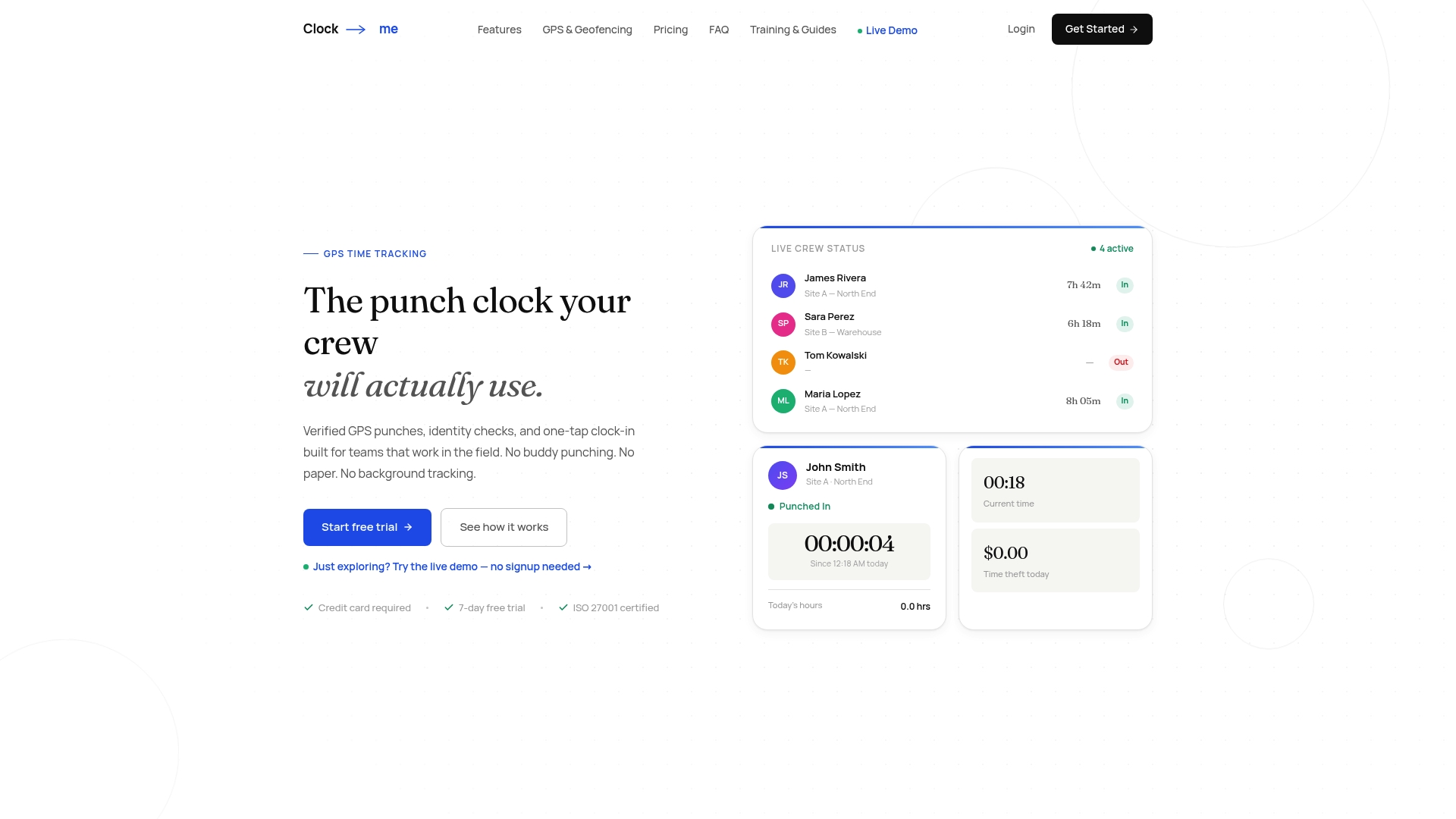
- Live dashboards show who's clocked in and where, in real time.
- Timecard attestation and payroll export reduce the manual cleanup that comes with stitching together kiosk and mobile records.
- A built-in approach to California labor law compliance helps managers in that state avoid common wage and hour mistakes.
You can start with the free plan or review the paid tiers, with details available on the Clock-Me site, or walk through the setup guide to run a quick pilot with your own field team this week.
Sources
- Time Clock vs. Mobile Punch vs. Timesheet: Which Fits? | DATABASICS
- Time clock software | Capterra
- Data protection and monitoring workers | ICO
FAQ
What is the best time clock system for a small business?
There's no single best system. It depends on whether your staff work from one location or move between sites, since small businesses make up most time-clock buyers and tend to prioritize low admin overhead over extra features.
What is the best mobile time clock app?
The best mobile app for your team is the one that verifies location accurately, works offline, and exports cleanly to your payroll system. Clock-Me offers GPS-verified clock-ins and geofencing built for field teams, available starting with a free plan.
What is an HR kiosk?
An HR kiosk is a dedicated device, usually a tablet, where employees clock in and out, request time off, or check schedules without needing their own phone or computer. It's common in retail, warehouses, and clinics where staff share a fixed worksite.
What is a clock machine called?
A clock machine is commonly called a time clock, punch clock, or kiosk, depending on whether it's a physical terminal or app-based system. Older mechanical versions that stamped paper cards are sometimes still called punch clocks even though most systems today are digital.