

For a team on ongoing schedules, QuickBooks Time is the fastest, lowest-error route because it syncs approved hours directly into payroll and invoicing. For a one-off historical transfer, a clean CSV import is the better tool. Either way, approve and map your data before payroll runs, not after, and lean on QuickBooks support when a field mismatch stalls you.
TL;DR:
- Bulk historical data transfers are best handled through CSV imports, which require careful format standardization and initial test runs to avoid errors.
- Ongoing payroll synchronization depends on employees selecting correct job and customer fields at clock-in, reducing the need for manual corrections.
- Proper approval of timesheets before payroll helps prevent posting errors, with a recommended fixed approval schedule and comparison of payroll reports.
- Transfer failures often result from name mismatches, unapproved entries, or missing mappings, which can be fixed by matching exact spellings and reviewing pending items.
- Using GPS-verified clock-ins and live dashboards reduces data mismatches from the start, speeding up payroll processing and minimizing manual cleanup.
Table of Contents
- Three Practical Routes for Getting Timesheets to QuickBooks
- Clean Your Timesheet Data Before You Import
- Doing the Import: CSV, QuickBooks Time Sync, and Payroll Export
- Approve and Lock Timesheets Before Payroll Runs
- Quick Fixes When Hours Won't Transfer
- How Clock-Me Builds QuickBooks-Ready Timesheets From the Start
- A Payroll Manager's First Week With a New Time System
- Get QuickBooks-Ready Timesheets Without the Manual Cleanup
- Where to Go for Official Guidance
- Sources
- FAQ
Three Practical Routes for Getting Timesheets to QuickBooks
Which path fits your business depends on team size, mobility, and whether you're setting up ongoing tracking or migrating old records. Here's how the three main options break down.
- QuickBooks Online native timesheets work well for small, simple teams entering hours directly in the browser or mobile app. This option is fine for a five-person office but gets clunky fast once you're tracking multiple job sites or shifts.
- QuickBooks Time sync is built for mobile crews. It pairs GPS location data with time entries, syncs continuously, and pushes approved hours straight into payroll. Intuit positions QuickBooks Time as the recommended tool for exactly this use case: distributed teams who need payroll to move faster without manual re-entry.
- CSV import or a third-party connector handles bulk historical data, usually when you're switching platforms mid-year or catching up several pay periods at once. This route demands the most manual data cleanup but gives you full control over what lands where.
Job costing and billable time only survive the transfer cleanly when the customer, job, and service item fields are mapped correctly on the way in. Skip that mapping step in a CSV import, and you'll get hours in QuickBooks with no idea which client to bill. Native timesheets and QuickBooks Time both preserve these fields automatically as long as employees select the right job at clock-in, which is one reason ongoing sync tends to produce fewer corrections than manual imports.
Feature availability also depends on your plan. QuickBooks documentation notes that some timesheet functions differ by subscription tier, with fuller features reserved for QuickBooks Time. Check your plan before you build a workflow around a feature you don't actually have.
Clean Your Timesheet Data Before You Import
Most import failures aren't technical. They're spelling problems. An employee entered as "Bob Smith" in your source file and "Robert Smith" in QuickBooks will not match, and the import will either reject the row or create a duplicate record.
QuickBooks expects a specific set of fields for any import: employee name, date, hours worked, customer or job, service item, billable flag, and pay type. Before you touch the import screen, run through this sequence:
- Confirm exact name matches. Employee names, customer names, and job names must match QuickBooks character for character, including middle initials and spacing.
- Standardize your time format. Pick decimal hours (7.5) or hh:mm (7:30) and use it consistently across the entire file. Mixed formats are a common cause of silent import errors.
- Strip invisible characters. Copy-pasted data from spreadsheets or old systems often carries hidden line breaks or extra spaces that look fine on screen but break the match. Vendor guidance on QuickBooks Online setup flags this as a leading cause of rejected rows.
- Run a small test batch first. Pick one employee and one job, import that single row, and confirm it lands correctly in QuickBooks before you commit to a bulk upload.
- Save your approval records. Keep a dated log of who approved each batch of hours. If payroll gets audited, that trail is what proves the numbers were reviewed before they were paid.
Pro Tip: Create one "test employee" and one "test job" in QuickBooks specifically for import trials. Running your sample batch against throwaway records means a bad mapping never touches real payroll data.
Doing the Import: CSV, QuickBooks Time Sync, and Payroll Export
Each route has its own mechanics, and knowing the exact steps saves you from guessing your way through a payroll deadline; for broader technical integration examples, see the SzopaLabs blog.
For CSV import:
- Build your file with columns for employee name, date, hours, customer/job, service item, billable (yes/no), and pay type.
- Format one sample row exactly as QuickBooks expects it, for example:
Jane Doe, 03/10/2026, 8.0, Main St Project, Labor, Yes, Regular. - Upload through the import tool and step through the field-mapping screen, checking that each column lines up with the right QuickBooks field.
- Watch for the most common mismatches: a job name that exists in your file but not in QuickBooks, or a pay type that doesn't correspond to anything in your payroll setup.
For QuickBooks Time sync:
- Invite your team members and have them download the mobile app.
- Let hours accumulate through GPS clock-ins or manual entry, tied to the correct job or customer.
- Use the Approve Time workflow inside QuickBooks Time to review and accept entries before they move anywhere.
- Export approved time straight to payroll for wage calculation, or to invoicing if the hours are billable to a client.
For payroll export specifically, overtime and break time need to be represented as distinct pay types, not folded into regular hours, or your overtime calculations will be wrong. Billable time only maps to an invoice correctly if the billable flag and service item were set at the point of entry, not patched in afterward.
Approve and Lock Timesheets Before Payroll Runs
The single biggest driver of clean payroll runs is a consistent approval cadence. Set a fixed day, weekly or biweekly depending on your pay schedule, when a manager reviews and formally approves every timesheet before it moves toward payroll.
Before you run payroll, pull two reports: a payroll-ready totals report and an itemized time report broken out by employee and job. Comparing the two catches discrepancies, like a missed punch or an unapproved late entry, before they turn into a paycheck error.
Handle exceptions deliberately rather than on the fly:
- Missed punches get corrected and re-approved by a manager, never edited silently by the employee.
- Overtime adjustments should be flagged and reviewed against your state's overtime rules before the batch is locked.
- Any reapproval after payroll has started should trigger a fresh review of that specific employee's totals, not a blanket re-run.
G2's comparison of time-tracking platforms consistently shows that teams enforcing a pre-export approval step report fewer post-payroll corrections than teams that approve time reactively, after payroll has already been processed. Locking approved time prevents an employee or manager from editing hours after the fact. If a timesheet does need to be reopened, QuickBooks requires a deliberate unlock action, which keeps accidental edits from slipping through unnoticed.
Quick Fixes When Hours Won't Transfer
Most transfer failures trace back to one of four causes, and each has a fast fix:
- Mapping mismatch: Add the missing customer or job to QuickBooks first, or assign the hours to a temporary job and reclassify them later.
- Unapproved time: Check QuickBooks Time for entries stuck in pending status. Someone with approval rights needs to review and accept them before they'll sync.
- Name mismatches: Compare the exact spelling, spacing, and punctuation between your source file and QuickBooks records. This is the single most common transfer blocker.
- Repeated failures: If the same batch keeps failing after two fixes, edit the entries directly inside QuickBooks rather than re-importing the whole file again.
How Clock-Me Builds QuickBooks-Ready Timesheets From the Start
The cleanest import is the one where the data was accurate before it ever left the time clock. Clock-Me's GPS-verified clock-ins and identity checks stop the buddy-punching and guesswork that create mismatched names and inflated hours in the first place.
Because every entry is tied to a verified employee and a specific location, job assignments stay consistent instead of drifting between shifts. The approval workflow and live dashboards let a manager review and sign off on time before it ever reaches your export file, which shortens the whole payroll cycle. Instead of chasing down which hours were approved, you're exporting a batch that's already clean.

A Payroll Manager's First Week With a New Time System
Expect one to two weeks to get fully rolling: week one for team onboarding and a few name/job corrections, week two for your first clean payroll run. Most early fixes are naming mismatches, not system failures. Lean on support resources when something doesn't sync as expected.
— Clock-me
Get QuickBooks-Ready Timesheets Without the Manual Cleanup
Clock-me gives you a direct path to fewer payroll corrections: GPS-verified clock-ins and identity checks catch the naming and location errors before they ever reach your export file, instead of leaving you to untangle them after a failed import.
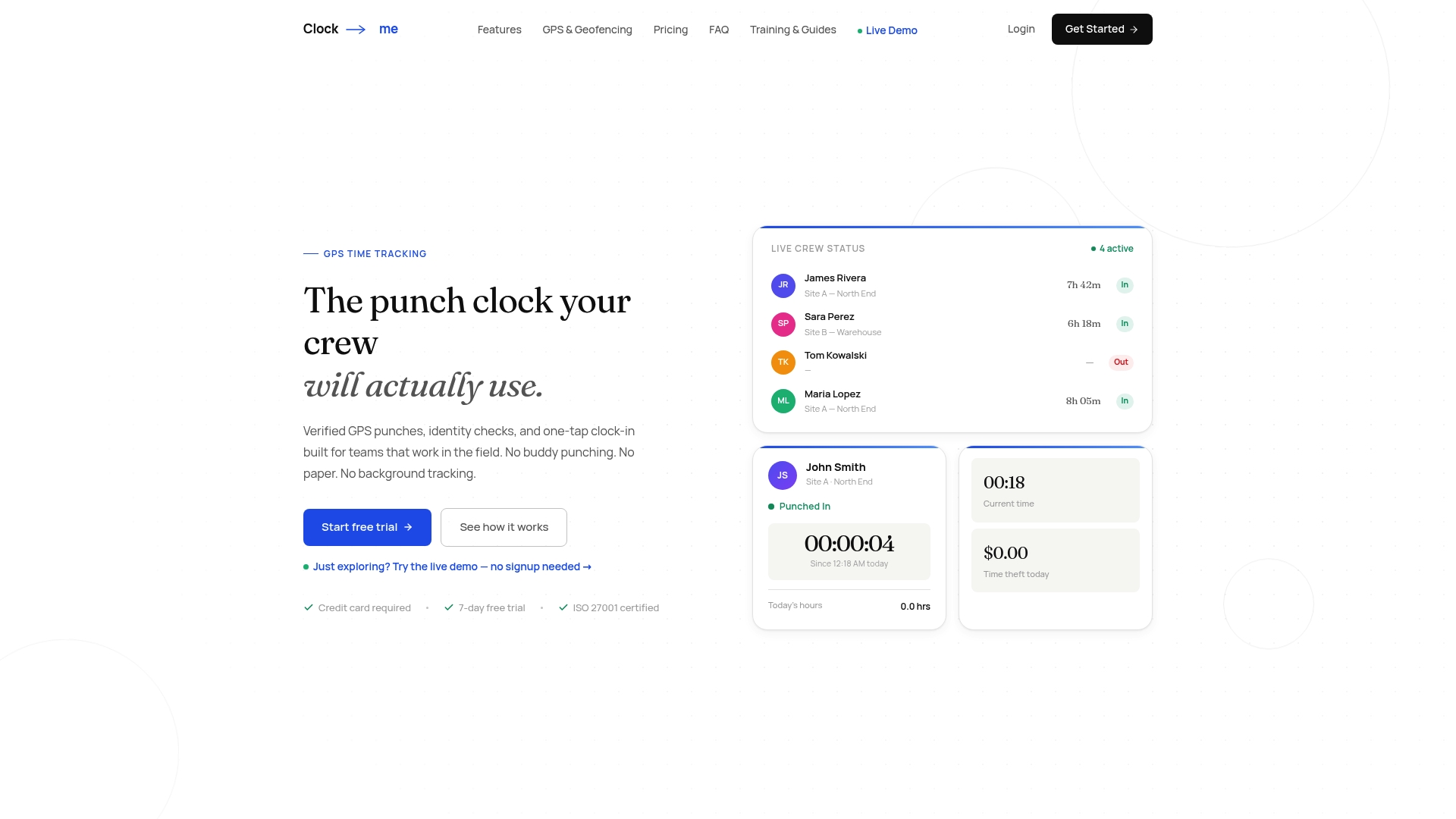
If you're tired of chasing down mismatched job names or unapproved hours the night before payroll, start with the Clock-me solutions overview to see how GPS punches, geofencing, and live dashboards fit your team. Small teams can try a free plan, and businesses needing compliance features and approval workflows can choose from a variety of paid subscription tiers. Larger operations can review advanced plans or contact the provider about enterprise pricing. For a fast implementation path, walk through the GPS Time Tracking Setup Guide and connect your first payroll export this week.
Where to Go for Official Guidance
For step-by-step help beyond this article, check QuickBooks Time timesheets and platform comparisons on G2.
Sources
FAQ
How Can I Import Timesheets Into QuickBooks Online?
Use the CSV import tool for one-time historical data, mapping each column to the matching QuickBooks field and running a small test batch first. For ongoing tracking, QuickBooks Time sync pushes approved hours in automatically without a manual file upload.
What Is TSheets Called Now?
TSheets was rebranded to QuickBooks Time after Intuit's acquisition. It's the same mobile time-tracking product, now integrated more tightly with QuickBooks payroll and invoicing.
How Much Do QuickBooks Timesheets Cost?
QuickBooks timesheet features vary by subscription plan, with some functions tied to specific QuickBooks Online tiers and fuller features available through QuickBooks Time. Current QuickBooks pricing is listed on Intuit's own site rather than fixed here. If you're evaluating a dedicated time-tracking platform instead, Clock-me's plans start with a Free tier and range up through Starter at $31.99 per month, listed on the Clock-me solutions page.
Why Are My Timesheet Hours Not Transferring to Payroll in QuickBooks Online?
The most common cause is unapproved time sitting in pending status, which QuickBooks won't send to payroll until someone with approval rights accepts it. Name mismatches between your time entries and existing employee or job records are the second most frequent cause.