

A timecard approval workflow is the structured sequence that checks and authorizes time entries before they hit payroll or client invoices. The right default for most teams: approve at the card level, reserve entry-level review for high-risk lines like overtime, and always pair approvals with locked periods and a fallback approver. Systems from SAP SuccessFactors to similar workforce management solutions build on this same logic.
TL;DR:
- Most approval systems trigger review based on specific events, such as period end or anomaly detection, rather than manual submission alone.
- Card-level approval is faster and suitable for most cases, while entry-level review should be reserved for high-risk scenarios like overtime or disputed shifts.
- Lock periods immediately after approval and establish fallback routing to prevent payroll delays caused by missing approvers or vacant roles.
- Verified GPS clock-ins and identity checks significantly reduce exceptions, enabling more cards to be approved at the card level with fewer manual reviews.
- Configuring a matching approval period to payroll dates and establishing clear notification and fallback rules are essential to prevent overlooked approvals and payroll errors.
Table of Contents
- The Timecard Approval Workflow Stages, Step by Step
- Card-Level vs. Entry-Level Approvals: Choosing the Right Granularity
- Configuring the Workflow: An Admin Checklist
- Best Practices That Keep Payroll Defensible
- What Managers Actually Do Inside the Approval Dashboard
- How Clock-me Applies This in the Field
- Our Take: Stop Over-Engineering the Easy Cases
- Get Verified Approvals Without the Paperwork
- Sources
- FAQ
The Timecard Approval Workflow Stages, Step by Step
Submitted time and approved time are not the same thing, and treating them as interchangeable is where most payroll errors start. A worker's submission is just a request for sign off; it becomes payroll data only after a manager or a defined rule authorizes it. That distinction is the whole point of building a formal approval workflow instead of trusting an honor system.
Most systems trigger the process one of four ways: a manual submit action by the employee, an automatic trigger at period close, a validation rule catching an anomaly (like a shift over 12 hours), or an entry-level flag on a specific line item. Once triggered, the record moves through a predictable set of stages:
- Validate. The system checks the entry against business rules (missed punches, overtime thresholds, incomplete shifts).
- Route. The record is sent to the assigned approver based on the employee's time recording profile.
- Review. The manager examines totals, project codes, or exceptions flagged during validation.
- Approve, reject, or partially approve. Some platforms allow approving most of a card while sending one line back for correction.
- Lock. Once approved, the record is closed against further edits.
- Export. Locked data flows to payroll or billing.
When a manager misses the deadline, calendar-based auto-approval through a designated processing user keeps payroll on schedule instead of stalling on one absent signature.
Card-Level vs. Entry-Level Approvals: Choosing the Right Granularity
Card-level approval means a manager signs off on the whole timesheet for the period at once, usually weekly or biweekly. Entry-level (or record-level) approval means each individual time entry gets its own review, common on client-billed projects where every line needs a defensible paper trail.
The trade-off comes down to workload versus documentation depth:
- Card-level approval is fast. One click clears an entire pay period for an employee.
- Entry-level approval is slower but produces a stronger audit trail for scenarios like disputed overtime or client billing disputes.
- Mixed models exist for a reason: most teams run card-level approval by default and flip on entry-level review only for exceptions.
- Overtime lines, split-shift entries, and project reclassifications are the usual candidates for mandatory single-record review, since reviewers need to see daily totals, not just weekly summaries, to stay compliant.
Pro Tip: Turn on entry-level approval only for the specific rule that needs it, like overtime over 8 hours in a day. Applying it across the board turns every approval cycle into a line-by-line audit and burns out your managers fast.
Configuring the Workflow: An Admin Checklist
Building the workflow correctly the first time saves you from chasing missing approvals later. Follow these steps in order:
- Define the workflow and its approval matrix in your system's admin or workflow module, specifying who approves what and in what sequence.
- Assign business rules to the relevant time recording profile so the workflow actually retrieves the correct configuration when a card is submitted, a step SAP SuccessFactors documents in detail.
- Create time consumer sets and decide whether approval rules evaluate reported time or calculated time, plus whether bulk submission triggers an informational workflow.
- Set your Validate-on trigger, choosing whether rules fire on Save or only on Submit.
- Match the approval period to the payroll period exactly, and configure a processing user for calendar-based auto-approval as a backstop.
- Build notification templates for pending, approved, rejected, and comment-added events so nobody is guessing about status.
Skip any one of these and you end up with a workflow that technically exists but doesn't actually protect payroll accuracy.
Best Practices That Keep Payroll Defensible
A workflow that approves cards but never locks them isn't really an approval workflow. It's a suggestion. Locking or closing the period immediately after approval prevents retroactive edits that can quietly undermine payroll accuracy after the run has already happened.
A few non-negotiables worth building in from day one:
- Lock periods after approval. No exceptions, no "just this once" edits.
- Define fallback routing. If an approver is missing (a manager left the company, a role is vacant), the system should route to a default admin or escalate rather than leave the card in limbo.
- Enforce segregation of duties. Nobody approves their own time card, ever.
- Preserve the audit trail. Rejections, comments, and any change made after approval need a visible history.
Approvals aren't paperwork. They're the accountability checkpoint that turns a worker's time entry into a record payroll and billing can actually rely on.
What Managers Actually Do Inside the Approval Dashboard
Most of your time in the system will be spent in one screen: the approvals dashboard. A well-built one gives you filters by date range, employee, and status (Waiting for approval, Approved, Rejected) so you're not scrolling through every card in the company.
Bulk actions matter here, but they cut both ways:
- Approve All works well for a team with clean, exception-free weeks. Use it when nothing has been flagged.
- Avoid bulk approval on any period with an open exception, a missed punch, or an overtime flag. Approve those individually.
- Inline approval lets you clear a single flagged entry without reopening the whole card, useful when one line is holding up an otherwise clean submission.
- Exports should separate locked from unlocked records, so payroll never accidentally pulls data still waiting on sign off.
How Clock-me Applies This in the Field
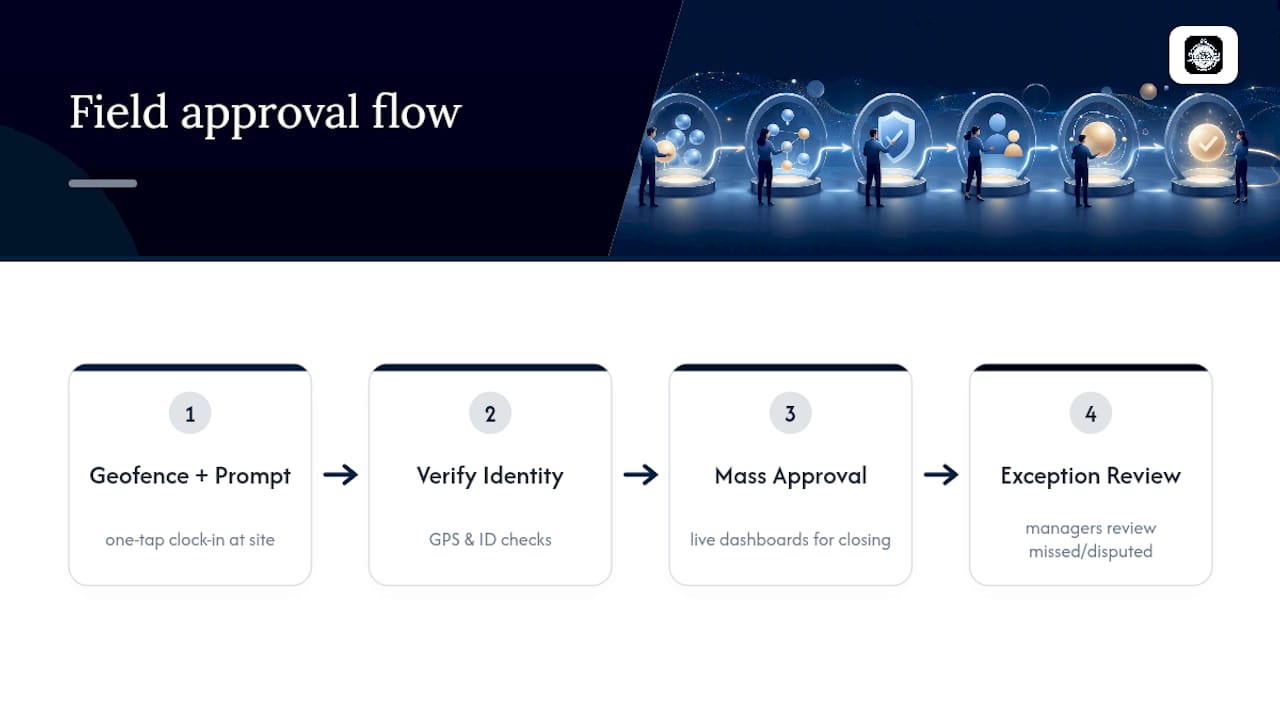
Field teams break approval workflows in predictable ways: missed punches, disputed locations, and managers guessing whether a submitted hour is real. Verified GPS clock-ins and identity checks cut down on the exceptions that would otherwise need entry-level review, which means more cards clear at the card level instead of getting stuck in manual scrutiny.
Geofencing and a one-tap clock-in reduce the missing-punch problem at the source, since employees can't forget to log a shift if the app prompts them at the job site. Combine that with live dashboards built for mass approval and period closing, and managers spend less time chasing down what happened and more time actually reviewing exceptions that deserve their attention. The workflow logic stays the same as any enterprise HR platform. The friction just drops.
Our Take: Stop Over-Engineering the Easy Cases
The conventional advice on timecard approvals treats every entry like it needs the same level of scrutiny. It doesn't. Most of your workforce clocks in, works a normal shift, and clocks out with nothing unusual to flag. Forcing entry-level review on that population wastes manager time and trains people to rubber-stamp approvals instead of actually reading them.
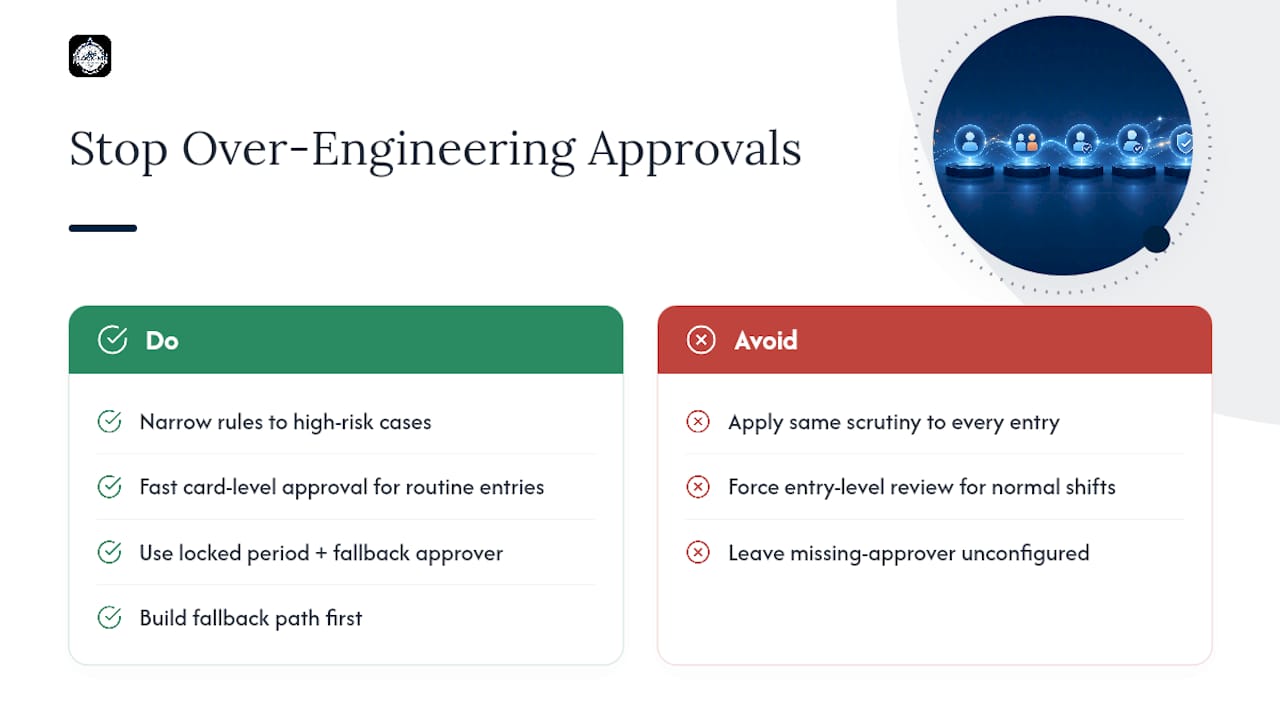
The real leverage is in narrowing your entry-level rules to the handful of scenarios that genuinely carry risk: overtime, split shifts, disputed locations. Everything else should move through card-level approval fast, with a locked period and a fallback approver doing the heavy lifting in the background.
Where most setups fail isn't the approval logic. It's the missing-approver scenario nobody configures until it actually happens and payroll is stuck. Build that fallback path first, before you touch anything else.
— Clock-me
Get Verified Approvals Without the Paperwork
Clock-me replaces guesswork with proof. Instead of approving a timecard based on trust alone, you're approving one backed by verified GPS clock-ins, identity checks, and geofenced job sites, so the exceptions that used to eat your review time simply happen less often.
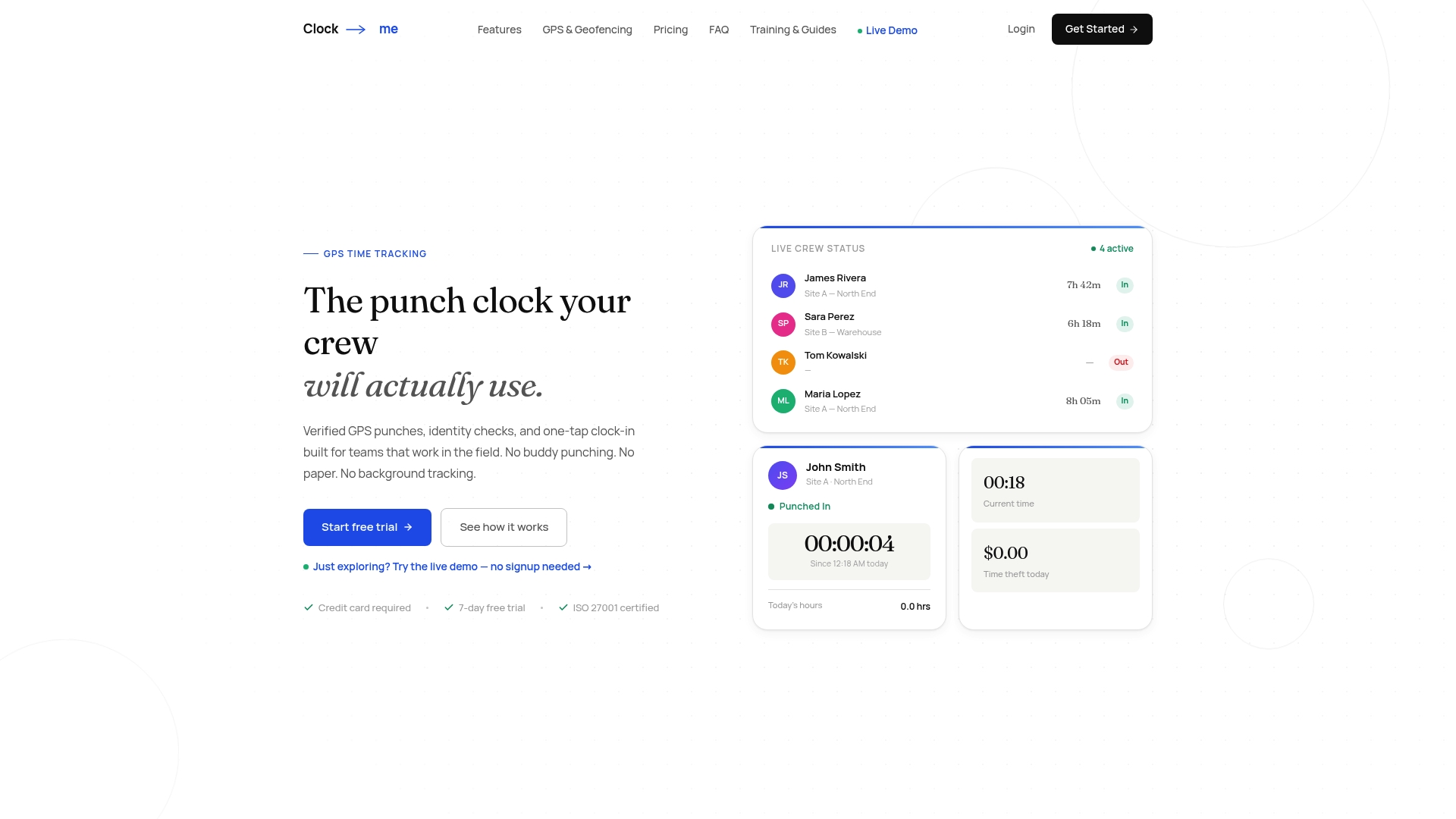
If your team works in the field, this matters more than any dashboard feature. Fewer disputed punches mean faster card-level approvals, cleaner audit trails, and payroll exports you can trust without a second look. Clock-me's plans range from a Free tier up through Enterprise, so you can start with a small team and scale the same approval structure as you grow. Set up your workflow today through the get-started guide and see how much of your approval backlog was really just missing punches all along.
Sources
- Configuring Time Sheet Workflows and Notifications — SAP SuccessFactors learning
- Timesheet approvals — Tempo Help Center
- How do I configure approval rules to run when time cards are submitted? — Oracle
- Timesheet approval software — Everhour
- TIMECARD APPROVAL WORKFLOW — PowerSchool BusinessPlus
FAQ
What Are the Steps of a Timecard Approval Workflow?
The core sequence is validate, route, review, approve or reject, lock, and export. Most modern systems automate the validate and route stages, leaving the review and approve decision to a manager.
What Time Frame Should I Approve My Timecard In?
Your approval period should match your payroll period exactly, whether that's weekly or biweekly. Missing that window is exactly why calendar-based auto-approval through a processing user exists as a backstop.
How Do I Create an Approval Workflow?
Start by defining the workflow and approval matrix in your admin panel, then assign business rules to the correct time recording profile. From there, configure your validate-on trigger, notification templates, and a fallback approver for missing-manager scenarios.
How Do I Approve My Timecard as a Manager?
Open your approvals dashboard, filter by status (typically Waiting for approval, Approved, or Rejected), and review flagged exceptions individually before using bulk approval on clean submissions. Platforms like Clock-me pair this with verified GPS data so fewer entries need manual scrutiny in the first place.
What Happens if a Timecard Has No Assigned Approver?
The workflow should route to a default admin or escalate automatically rather than leaving the card pending indefinitely, since an unresolved approver gap can block payroll entirely. This is one of the most common configuration gaps teams discover only after it causes a missed payroll run.