

For field teams, a mobile time clock has to combine one-tap, GPS-verified clock-ins with reliable offline sync. That single pairing is what stops buddy punching, closes location gaps, and keeps payroll accurate even when a crew member is standing in a dead zone. Everything else, from kiosk mode to payroll exports, matters less if this core capability isn't solid. The checklist below shows you exactly what to demand from any mobile time clock app before you sign a contract.
TL;DR:
- Mobile time clocks must prioritize GPS-verified punches with offline sync that preserves local timestamps for accurate, dispute-proof records.
- The app should support one-tap clock-ins, job code entries, and audit trails for edits to reduce payroll errors and disputes.
- Location verification should be calibrated per site, with additional methods like photo capture or biometric checks for higher risk roles.
- Proper rollout includes a pilot test, role-based permissions, and phased expansion over two to three weeks to prevent payroll chaos.
- Reports need to highlight exceptions and be compatible with existing payroll systems through direct exports or APIs, ensuring dependable payroll processing.
Table of Contents
- What Features Should a Mobile Time Clock Include?
- How Do You Roll Out a Mobile Time Clock Across Your Team?
- How Do GPS and Verification Controls Work Without Overreach?
- What Reports and Payroll Integrations Do You Actually Need?
- What Do Field Deployments Teach You About Rollout Success?
- Who Gets Access to What in a Mobile Time Clock System?
- Does Your Mobile Time Clock Handle Overtime and Break Rules Correctly?
- Can Every Employee Use a Mobile Time Clock App Comfortably?
- When Should You Choose Mobile-First Over Kiosk or Paper?
- Get Your Mobile Time Clock Running in Days, Not Months
- Sources
- FAQ
What Features Should a Mobile Time Clock Include?
A mobile employee time clock earns its keep by removing friction at the exact moment an employee starts or stops working. That moment is when most time theft, disputes, and payroll corrections originate, so the feature set has to be built around it rather than bolted on afterward.
Clock in and clock out experience. The punch itself should take one tap. Anything more, a multi-screen menu, a manual location entry, a code an employee has to remember, adds friction that leads to late or missed punches. Look for support for job codes so a single employee can log time against multiple cost centers in one shift, built-in break tracking that separates paid and unpaid time automatically, and a retroactive edit function that requires supervisor approval and leaves an audit trail. Without that trail, every correction becomes a "he said, she said" argument during a payroll dispute.
Location verification, calibrated to the job. Not every role needs the same level of scrutiny. A single-site retail crew might only need a geofence check at clock-in. A field service team spread across a dozen job sites needs GPS verification tied to each punch, plus the option for random location check-ins during a shift to confirm someone hasn't left the site. Aggregated software reviews consistently list GPS verification, geofencing, kiosk mode, offline sync, and payroll exports as the baseline feature set buyers expect, and that consensus lines up with what field managers actually need day to day.
Offline mode and sync behavior. Field crews work in parking garages, rural sites, and basements where cell signal disappears. A mobile time clock app worth using will let an employee punch in without a connection and sync automatically once signal returns. The sync logic matters more than the offline capability itself: the app should preserve the original local timestamp from the device while also recording a separate server-receipt timestamp, so a manager can see both when the punch happened and when it was confirmed. That distinction becomes important the one time a dispute lands on your desk.
Kiosk mode versus individual devices. A shared tablet mounted at a single entrance works well for dense crews clocking in at the same location every day, cutting per-user licensing costs. Individual devices make more sense for distributed teams that move between sites. Your license model should match your crew structure, not the other way around.
Timesheets, approvals, and payroll export. The core loop looks like this:
- Digital timesheets that populate automatically from punches, not manual entry
- A structured approval workflow so supervisors sign off before payroll runs
- PTO and time-off requests that route through the same app
- Export formats compatible with your existing payroll provider, not a generic CSV that requires reformatting every pay period
A recent roundup of employee time clock apps confirms mobile usability, GPS checks, offline sync, and payroll export sit at the top of buyer evaluation criteria, which tells you these aren't nice-to-haves. They're the minimum bar.
How Do You Roll Out a Mobile Time Clock Across Your Team?
Deployment fails most often not because the software is bad, but because the rollout skips steps that seem optional until they aren't. A phased approach protects you from a companywide mess if something doesn't click.
- Run a pilot with one crew or site first. Pick a group with a mix of tech comfort levels, not just your most digitally fluent employees. If the app works for your least confident user, it will work for everyone.
- Decide on licensing before you provision accounts. Per-user pricing tends to favor distributed teams where each employee carries a personal device. Per-device pricing can get expensive fast for teams that rotate staff through shared tablets, since device-based billing was a recurring concern in user reviews of mobile time clock platforms.
- Train on the failure case, not just the happy path. Spend more time on "what do I do when my phone has no signal" than on the basic punch flow. Most training time gets spent on scenarios that rarely happen while the actual daily friction point goes unaddressed.
- Place kiosks where supervisors can see them. A tablet tucked in a back office defeats the purpose of a shared clock. Put it at the entrance, get supervisor sign-off on placement, and confirm Wi-Fi or cellular coverage at that exact spot before installation day.
- Expand to full rollout over two to three weeks, not all at once. Give your pilot group time to surface the small annoyances (bad signal spots, confusing job codes) before every site depends on the app simultaneously.
Pro Tip: Build a one-page troubleshooting sheet for offline punches before launch day, not after the first complaint. Include exactly what an employee should see on-screen when they're offline, and what a supervisor should check first when a punch doesn't appear in the dashboard.
Common traps include skipping the pilot entirely, assuming every job site has the same connectivity, and failing to get buy-in from crew leads before mandating the switch. A rushed rollout creates the exact payroll chaos you were trying to eliminate.
How Do GPS and Verification Controls Work Without Overreach?
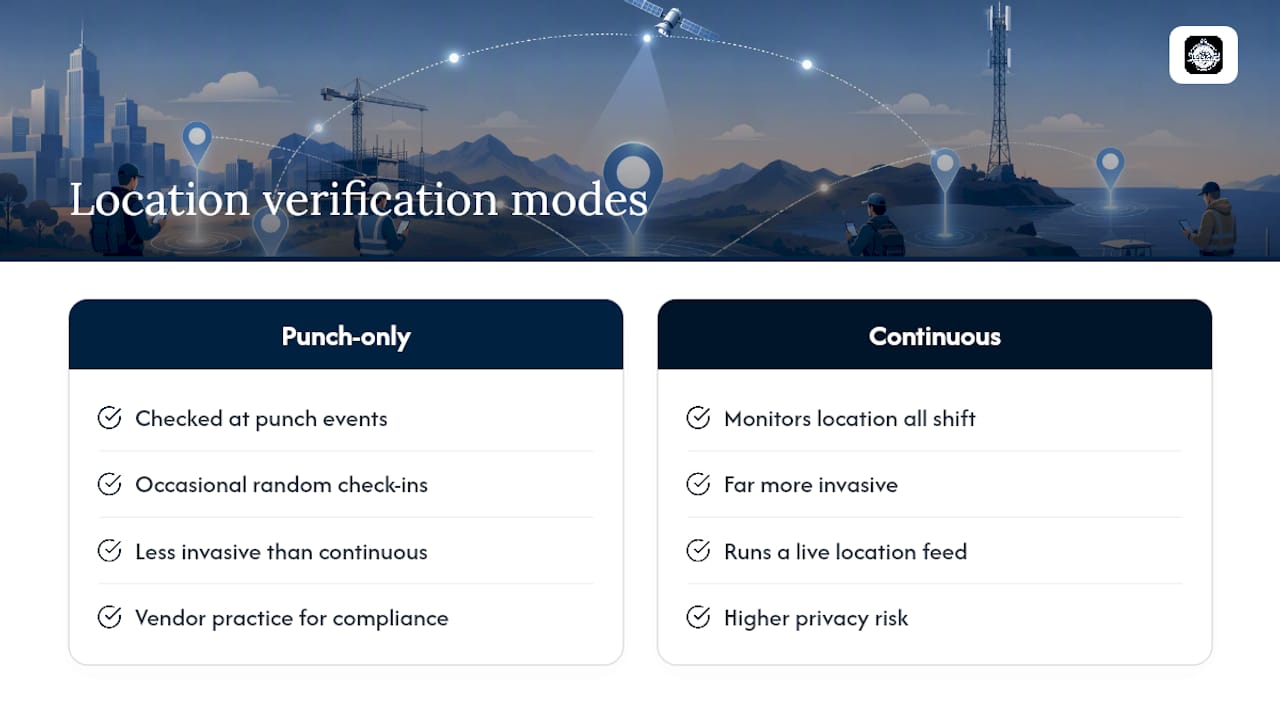
Location verification at clock-in is a single check: does the device's GPS coordinate fall inside an approved boundary at the moment of the punch? Continuous tracking is different and far more invasive: it monitors location throughout a shift regardless of whether the employee is clocking anything. Most compliant mobile time clocks stick to the former, checking location only at punch events plus occasional random check-ins, rather than running a live feed all day.
Geofence radius is a trade-off you have to tune per site. Set it too tight and employees get falsely blocked from clocking in when GPS drifts a few meters, which happens constantly in urban canyons and near tall buildings. Set it too wide and you lose the location assurance the whole feature exists to provide. A practical approach uses a radius informed by testing GPS accuracy on a handful of actual devices at that site, rather than applying one default number everywhere.
Verification methods beyond GPS include photo capture at punch time, a biometric prompt like fingerprint or face match on the device, device binding so an account only punches from a registered phone, and random mid-shift check-ins that confirm continued presence. Layer these based on risk. A single-site office doesn't need the same rigor as a construction crew across five active job sites.
Communicating the policy matters as much as the technology. Employees adopt these controls faster when management frames them around accurate pay and safety, not surveillance. Pairing the rollout with a clear written policy that explains exactly when and why location is checked tends to reduce pushback significantly, since employees who understand the "why" file far fewer complaints than those who simply get a new app dropped on them.
Before deploying any location-based mobile time clock, review the platform's own data safety disclosures, since app stores now require developers to declare what location and personal data gets collected and shared. That disclosure should match what the vendor tells you in their sales conversation, not contradict it.
What Reports and Payroll Integrations Do You Actually Need?
A mobile time clock is only as useful as the reports it produces, since managers rarely look at raw punch data. They look at exceptions.
The reports that matter most: an exceptions report flagging missed punches, late arrivals, and unapproved overtime; a scheduled-versus-worked comparison that surfaces coverage gaps immediately; an overtime summary broken out by employee and by pay period; and a pay-period summary formatted for whoever runs payroll, whether that's an in-house team or an outside provider.
Export formats matter more than most buyers realize until they hit a wall. Demand:
- Direct export formats matched to your specific payroll provider, not a generic file you have to reformat by hand
- API access or webhooks that push approved timesheets into payroll automatically once a supervisor signs off
- A defensible audit trail showing every edit, who made it, and when, since this is the record that protects you in a wage dispute
An audit trail isn't a nice-to-have feature buried in settings. It's the evidence you'll need the day an employee disputes their hours, and payroll systems that can't produce a clean edit history leave you exposed in exactly that moment.
What Do Field Deployments Teach You About Rollout Success?
Real-world deployments surface problems that feature lists never mention. Practitioners who run rollouts across distributed crews consistently report that a short training session paired with a clear "what to do when tech fails" protocol cuts missed punches significantly during the first weeks, when employees are still building the habit.
License model choice changes your total cost more than almost any other decision. Per-device billing works out cheaper for a small office with one shared tablet. It gets expensive fast for a construction company running kiosk mode across a dozen job sites, where per-user subscriptions for a mobile app on personal phones often come out ahead.
Track these KPIs in your first 30 to 90 days:
- Reduction in payroll disputes and manual correction requests
- Admin hours saved per pay period on timesheet reconciliation
- Adoption rate, measured as the percentage of punches happening through the app versus manual entry or paper backup
Pro Tip: Don't measure success by whether employees complain. Measure it by whether your payroll admin's correction queue actually shrinks. Complaints drop off in week one regardless; the correction queue tells you if the system is actually working.
Some mobile time clock platforms are built around a set of field-tested demands including GPS-verified clock-ins, identity verification to stop buddy punching, geofencing tuned per site, and live dashboards that show supervisors exactly who's on the clock and where, without requiring paperwork.
Who Gets Access to What in a Mobile Time Clock System?
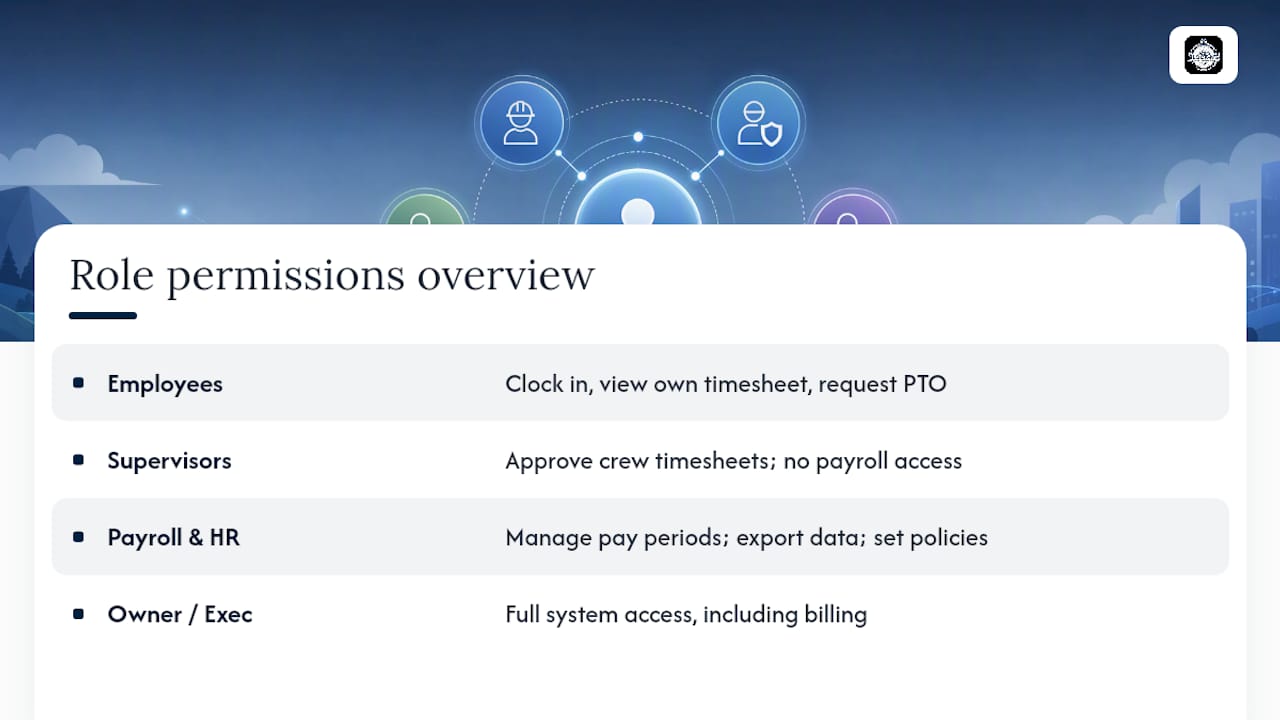
Role-based permissions determine whether a mobile time clock app scales cleanly or turns into an administrative headache. At minimum, you need four tiers: employees who can only clock in, view their own timesheet, and submit time-off requests; supervisors who approve timesheets and edits for their crew but can't touch payroll settings; payroll or HR administrators who manage pay periods, export data, and adjust company-wide policies; and an owner or executive tier with full system access including billing.
Permission granularity matters most at the supervisor level. A field supervisor overseeing three job sites shouldn't have to see payroll data for the entire company, and a payroll admin shouldn't need geofence editing rights. Look for a system that lets you scope a supervisor's visibility to their assigned crew or location rather than exposing every employee's timesheet by default.
Custom roles matter for larger operations. A multi-site construction company might need a "site lead" role distinct from a full supervisor, with permission to approve punches but not edit historical timecards. Without that granularity, you either over-grant access to keep operations moving or bottleneck every approval through one overworked manager.
Audit logging ties directly into permissions. Every role change, approval, and edit should record who made it and when, since that log becomes your defense if an employee or a labor board ever questions how a timecard was altered.
Does Your Mobile Time Clock Handle Overtime and Break Rules Correctly?
Labor law compliance is where a mediocre mobile time clock creates real legal exposure. Overtime rules vary by state and by industry, and a system that just totals hours without applying local rules leaves you calculating pay manually anyway, which defeats the purpose of automation.
The system should flag overtime thresholds automatically, whether that's a daily trigger, a weekly trigger, or both, since some states require daily overtime calculations that federal rules alone don't cover. California is a clear example: its labor code requires overtime pay after 8 hours in a single day, not just after 40 hours in a week, which trips up a lot of payroll systems built around a federal-only standard.
Break enforcement needs the same rigor. Meal and rest break requirements differ by jurisdiction, and some states require premium pay when a break gets missed or cut short. A mobile time clock that tracks break start and stop times, and flags a missed or short break automatically, gives you a real-time compliance check rather than a payroll surprise two weeks later.
None of this replaces legal counsel for your specific jurisdiction. What a good system does is surface the exceptions, daily overtime, missed breaks, unapproved extra hours, so your payroll team catches them before a check goes out, not after an employee files a complaint.
Can Every Employee Use a Mobile Time Clock App Comfortably?
A workforce spread across job sites usually includes employees who speak different first languages and some who need accessibility accommodations. A mobile time clock that only works in English immediately creates a two-tier experience, where some employees clock in confidently and others guess at buttons.
Multi-language support should cover the core punch flow at minimum: clock in, clock out, break start, break end, and time-off request screens. The deeper the translation goes into settings and reports, the better, but the punch screen is non-negotiable since that's what every employee touches every single shift.
Accessibility features matter just as much. Large touch targets help employees wearing work gloves or using the app one-handed in the field. Voice-over compatibility supports employees with visual impairments. High-contrast display modes matter for outdoor use in bright sunlight, which is a real accessibility issue for field crews specifically, not just a general software concern.
When you're evaluating a smartphone time clock, ask the vendor directly which languages the punch flow supports and whether the app has been tested with screen readers. A vendor that can't answer either question hasn't built for the full range of employees who will actually use it.
When Should You Choose Mobile-First Over Kiosk or Paper?
Distributed crews working across multiple job sites need mobile-first tracking. Paper time sheets and a single office kiosk simply can't verify location or catch buddy punching across five different addresses. Dense, single-location crews are a different story: a shared kiosk or tablet often costs less per employee and eliminates the "forgot my phone" problem entirely.
The trade-off comes down to site count and crew mobility. If your team clocks in from the same spot every day, kiosk mode wins on cost. If they move between job sites, a mobile employee time clock with GPS verification is the only setup that actually confirms where the work happened.
Measure the switch at 30 and 90 days using concrete numbers: fewer payroll disputes, fewer manual corrections, and a real adoption rate. Don't rely on gut feel. The data will tell you faster than any opinion will.
— Clock-me
Get Your Mobile Time Clock Running in Days, Not Months
Some mobile time clock platforms map directly onto this checklist: GPS-verified, one-tap clock-ins, geofencing tuned per job site, identity verification that stops buddy punching before it starts, kiosk mode for shared devices, offline sync that reconciles timestamps cleanly, and payroll exports built to cut manual reconciliation.
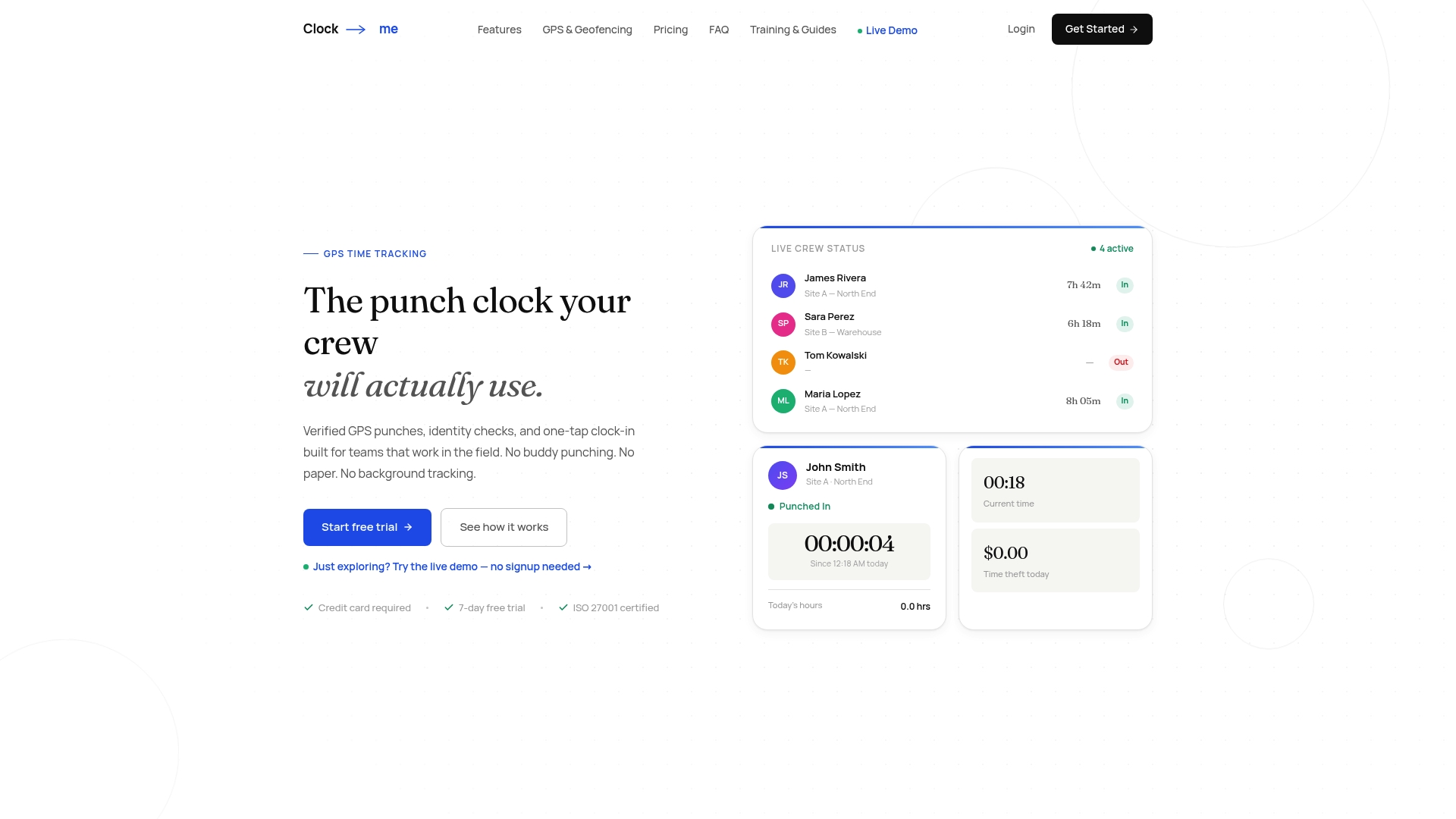
Some dashboards give supervisors a live view of who's clocked in and where, which can turn compliance from a monthly scramble into a daily glance. For teams navigating complex daily overtime rules or managing crews across scattered job sites, live visibility can catch exceptions before they become payroll disputes, not after. Device-based fraud detection and timecard attestation add layers of defensibility if a wage claim ever arises.
If the feature checklist in this article matches what your team needs, the fastest way to see it in action is to walk through the GPS time tracking setup guide and get your first crew provisioned this week.
Sources
This article draws on feature comparisons from Open Time Clock's listing on Capterra, user feedback from Open Time Clock's G2 reviews, and HiveDesk's 2026 roundup of employee time clock apps. For data safety practices, review Google's Privacy & Terms and Clock-me's own data safety summary. For setup details, see the Clock-me solutions overview.
FAQ
What Is the Best Mobile Time Clock App?
The best option depends on your crew structure, but for distributed field teams, the strongest candidates combine GPS-verified clock-ins, offline sync, and kiosk mode in one platform, since these five features form the baseline buyers expect from any mobile time clock. Clock-me is built specifically around that combination for field-based teams.
Where Is the Clock App on My Phone?
Most smartphones include a built-in clock app in the default app drawer, usually labeled "Clock," but that's a general timekeeping tool, not a workplace time clock. For employee time tracking, you need a dedicated mobile time clock app installed separately, like Clock-me, that connects punches to payroll and scheduling.
How Do I Display a Clock on My Mobile Screen?
Most phones let you add a clock widget to the home screen by long-pressing an empty area and selecting "Widgets," then choosing the clock option. For work time tracking, the relevant display is the punch screen inside your mobile time clock app, which shows the current time alongside the clock-in button.
Is There a Free Time Clock App for iPhone?
Several time clock apps offer free tiers for small teams, though most cap the free plan at a limited number of users or basic features. Check each vendor's data safety summary and feature list before committing, since free tiers often lack GPS verification or payroll export.
How Does Offline Mode Work in a Mobile Time Clock?
An employee can clock in or out without a signal, and the app stores the punch locally with a timestamp before automatically syncing it once connectivity returns. Well-designed systems preserve the original local timestamp while also logging a separate server-receipt time, giving you both records if a dispute comes up later.